Members, roles and SSO#
This page covers who can use your organisation and what each person may do: inviting members, organisation and workspace roles, single sign-on (SSO), sign-in with Google or GitHub, personal API tokens, sessions, and removing people. You need it when you bring a team to Astraeus or review who has access.
How access works#
Access has two levels.
- Organisation role (
owner,admin,member): what a person may do with the organisation itself — its clusters, workspaces, people and settings. - Workspace role (
admin,editor,viewer,auditor): what a person may do inside one workspace — its runs, drives, credentials, endpoints and the rest, on every cluster the workspace has access to.
Organisation owners and admins are admins of every workspace. Members see only the workspaces they were added to, with the role they were given there.
When you act in a workspace, the request is made on the cluster as you, with your workspace role, and confined to that workspace: whatever you do in a workspace can never reach another workspace's work on the same cluster. Roles and permissions has the full table.
flowchart LR
  P[Person] -->|organisation role| O[Organisation]
  O --> A[Workspace A]
  O --> B[Workspace B]
  P -->|workspace role| A
  A -->|its access on each cluster| C[Cluster]
Note
Someone who is not a member of an organisation gets 404 ORG_NOT_FOUND
for it, not 403: the organisation's existence is not revealed. The
same holds for workspaces (404 WORKSPACE_NOT_FOUND).
Organisation roles#
| Capability | owner | admin | member |
|---|---|---|---|
| See the organisation, its members and its clusters | ✓ | ✓ | ✓ |
| See the price table of the organisation's clusters | ✓ | ✓ | ✓ |
| See usage and cost of the workspaces they belong to | ✓ | ✓ | ✓ |
| See usage and cost of every workspace, and of work outside workspaces on the organisation's dedicated clusters | ✓ | ✓ | |
| Rename the organisation | ✓ | ✓ | |
Invite people as admin or member, list and revoke invitations |
✓ | ✓ | |
Change a member's role between admin and member |
✓ | ✓ | |
Grant or revoke owner |
✓ | ||
| Remove a member who is not an owner | ✓ | ✓ | |
| Remove an owner | ✓ | ||
| Create and delete workspaces | ✓ | ✓ | |
| Give a workspace access to a cluster, change its terms, remove the access | ✓ | ✓ | |
| Manage the organisation's clusters; enroll, cordon, label and remove machines; reservations | ✓ | ✓ | |
| Set a cluster's prices | ✓ | ✓ | |
| Configure single sign-on | ✓ | ✓ | |
| Read the audit log | ✓ | ✓ | |
| Manage alerts and event streams | ✓ | ✓ | |
| Act as admin in every workspace | ✓ | ✓ | |
| Delete the organisation (only when it has no clusters) | ✓ | ||
| Leave the organisation | ✓ | ✓ | ✓ |
An organisation always keeps at least one owner: demoting or removing the
last owner fails with 409 LAST_OWNER.
Workspace roles#
| Role | Console description | What it may do |
|---|---|---|
viewer |
sees everything, changes nothing | Read the workspace's runs, workers, logs, drives, data sources, credentials (their references, never secret values), endpoints, schedules, replica groups, the machines in its pools, GPUs and metrics. Use run templates. |
editor |
runs and changes work | Everything a viewer may do, plus create, change and delete runs, drives, data sources, credentials, endpoints, schedules and replica groups; stop and requeue workers; open a worker's or endpoint's proxy; save and delete run templates. |
admin |
also manages people | Everything an editor may do, plus add, change and remove the workspace's people, rename the workspace, set how long its events are kept, turn the hosted inference gateway on or off, and write the workspace's agent guardrails, budgets and retention policies. |
auditor |
reads the agents' governance record, makes evidence packs | Read the governance record of the workspace's agents (see Anemoi) and its usage; create and download evidence packs. No access to runs, logs or other workloads. |
Creating a workspace, giving it access to clusters and setting its
quotas, pools, priority and host access are organisation admin
tasks. A workspace admin who is only a member of the organisation cannot
change them.
Invite a member#
Owners and admins invite people by e-mail. The link is valid for 7 days. The person accepts it while signed in with an account for exactly that e-mail address; accepting also marks the address as verified.
- Open Organisation → Members and select Invite.
- Enter the E-mail and choose the Role:
memberoradmin. Owners are made from existing members, never invited. - Select Send invitation. The invitation is listed under Pending invitations with its expiry.
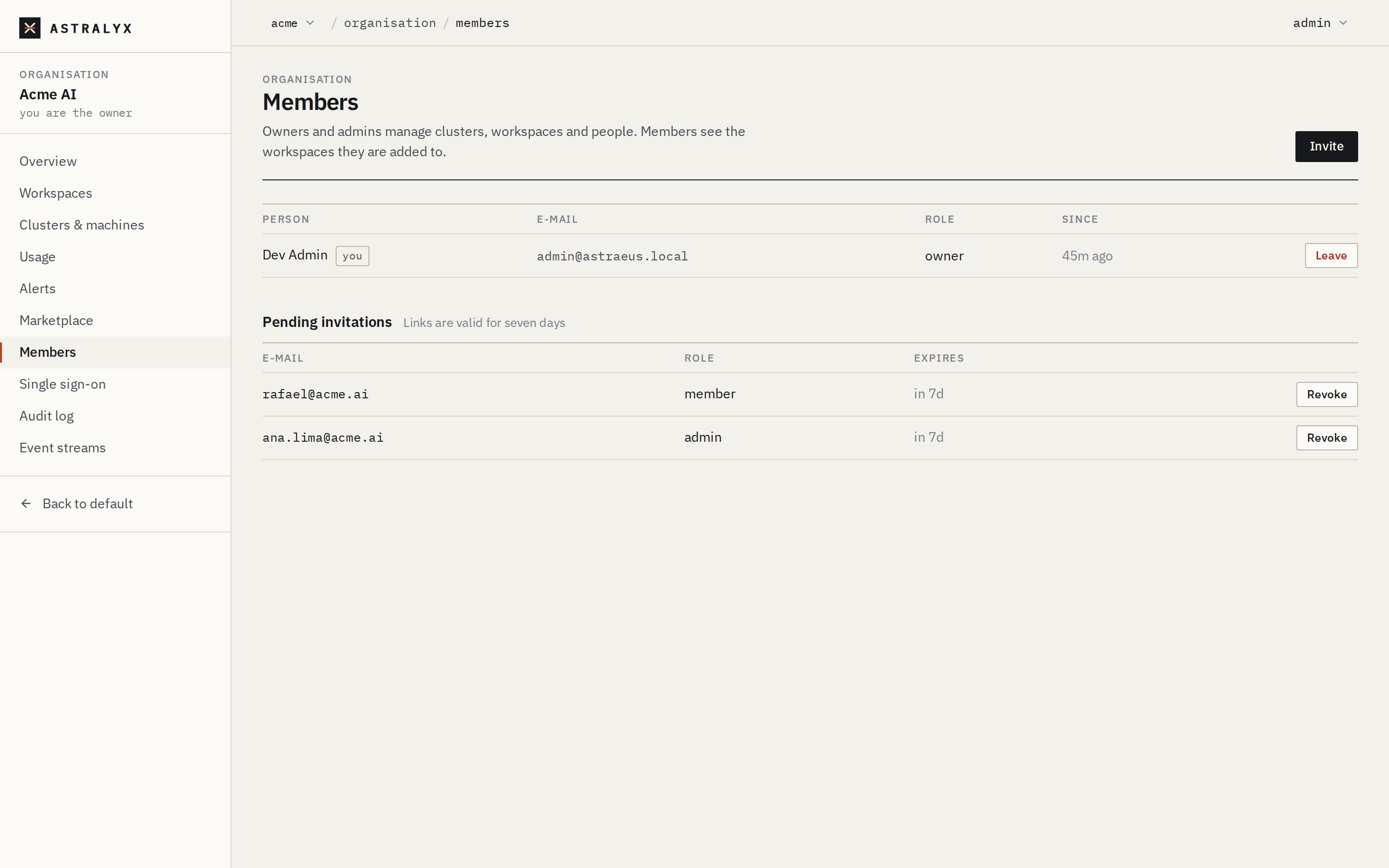
To cancel an invitation, select Revoke in its row.
$ curl -sS -X POST "$ASTRA_URL/api/v1/orgs/acme/invitations" \
    -H "Authorization: Bearer $ASTRA_TOKEN" -H "Content-Type: application/json" \
    -d '{"email": "[email protected]", "role": "member"}'
{"id":"0192f3c4-…","email":"[email protected]","role":"member"}
GET /orgs/{org}/invitations lists pending invitations;
DELETE /orgs/{org}/invitations/{id} revokes one. The invited person
accepts with POST /invitations/accept and {"token": "<from the link>"}.
| Error | Cause |
|---|---|
400 INVALID_ROLE |
The role is not admin or member. |
400 INVALID_EMAIL |
The address has no @. |
400 INVALID_TOKEN |
The link expired, was already used, or was revoked. |
403 WRONG_ACCOUNT |
The signed-in account's e-mail is not the invited one. |
Add a person to a workspace#
A person must belong to the organisation before they can be added to one of
its workspaces (400 NOT_IN_ORG otherwise).
- Open the workspace, then Settings.
- Under People, select Add person.
- Choose the Person and the Role, then select Add.
Change a role with the selector in the person's row; Remove takes
them out of the workspace. Only organisation members with the member
role are offered: owners and admins are already admins of every
workspace.
$ curl -sS -X PUT "$ASTRA_URL/api/v1/orgs/acme/workspaces/vision/members/$USER_ID" \
    -H "Authorization: Bearer $ASTRA_TOKEN" -H "Content-Type: application/json" \
    -d '{"role": "editor"}'
{"user_id":"0192…","role":"editor"}
The same call changes an existing role.
DELETE /orgs/{org}/workspaces/{ws}/members/{user} removes the person;
anyone may remove themselves. GET /orgs/{org}/members gives user IDs.
Change an organisation role#
In Organisation → Members, choose the new role in the person's row.
Only owners see owner in the list, and only owners can change an
owner's row.
Only owners grant or revoke owner (403 ORG_OWNER_REQUIRED).
Remove a member#
Removing a person from the organisation also removes them from every workspace of the organisation, in the same step. Their access to the organisation ends with their next request, because every request checks membership.
Warning
Removing a member does not delete their account, end their sessions or revoke their API tokens: those belong to the person, not to the organisation, and keep working in any other organisation they belong to. Runs they started keep running; delete them separately if needed.
Single sign-on#
Each organisation can connect one identity provider over OpenID Connect
(authorization code flow with PKCE). People choose Sign in with your
organisation's identity provider on the sign-in page (the console's /sso
page) and enter the organisation's short name. At their first sign-in they
become members of the organisation with the role you choose. SAML is not
supported.
Any provider that implements OpenID Connect discovery works if it meets these requirements:
- It publishes
<issuer>/.well-known/openid-configuration, and theissuerin that document equals the issuer you configure (a trailing/is ignored). - Its ID tokens are signed with RS256 and carry
emailandemail_verified: true(a boolean, or the string"true"). An ID token without a verified e-mail is refused. Check that your provider releases these claims for the client. - Its token endpoint accepts the client secret with HTTP Basic
authentication (
client_secret_basic). - Its discovery, token and key (JWKS) endpoints are on public addresses: Astraeus does not reach private addresses that tenants give it.
The platform asks for the scopes openid email profile.
Before you begin#
- You are an owner or admin of the organisation.
- You can create an application (a web, or confidential, client) at your identity provider.
Set up SSO#
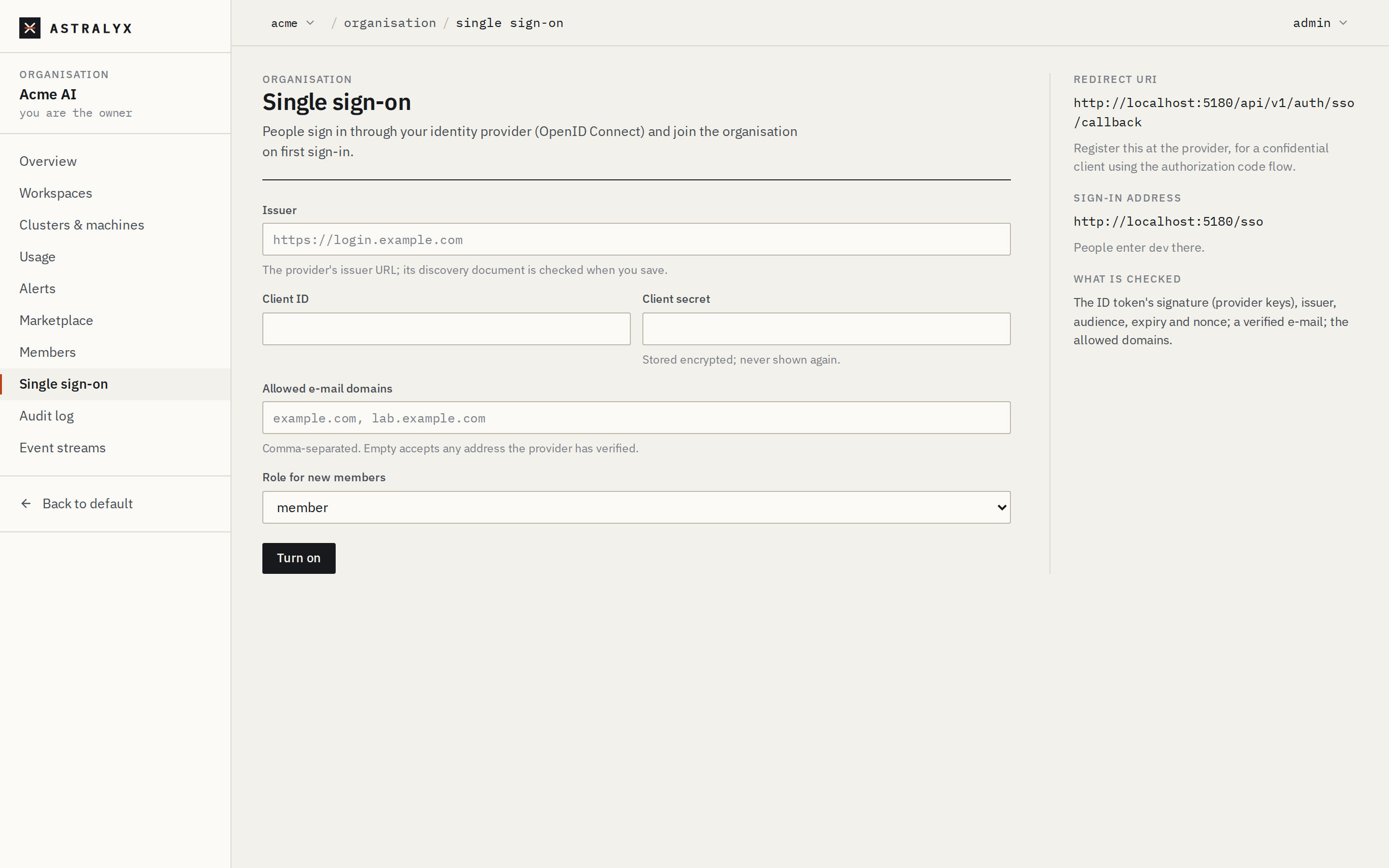
- Open Organisation → Single sign-on and copy the Redirect URI shown
at the side:
<console>/api/v1/auth/sso/callback. On Astraeus Cloud it ishttps://console.astralyx.cloud/api/v1/auth/sso/callback. - At your identity provider, create a confidential client for the authorization code flow and register that redirect URI. Note its issuer URL, client ID and client secret.
-
In the console, fill in the form:
Field Description Issuer The provider's issuer URL ( http://orhttps://). Its discovery document is fetched when you save; if that fails, saving fails with400 DISCOVERY_FAILED.Client ID The client ID at the provider. Client secret Stored encrypted, never shown again. Required the first time; later, leave it empty to keep the stored one. Allowed e-mail domains Comma-separated, e.g. example.com, lab.example.com. A person whose e-mail is in none of them is refused (403 DOMAIN_NOT_ALLOWED). Empty accepts any address the provider has verified.Role for new members member(default) oradmin. Applies only to people who are not members yet. -
Select Turn on (Save when changing existing settings).
- Test it: in a private browser window, open
<console>/sso, enter the organisation's short name and sign in at the provider. You return to the console, signed in, with the organisation listed.
The same settings through the API:
$ curl -sS -X PUT "$ASTRA_URL/api/v1/orgs/acme/sso" \
    -H "Authorization: Bearer $ASTRA_TOKEN" -H "Content-Type: application/json" \
    -d '{"issuer": "https://login.example.com", "client_id": "astraeus",
         "client_secret": "…", "allowed_domains": ["example.com"], "default_role": "member"}'
{"issuer":"https://login.example.com","client_id":"astraeus","allowed_domains":["example.com"],"default_role":"member","redirect_uri":"https://console.astralyx.cloud/api/v1/auth/sso/callback"}
GET /orgs/{org}/sso returns the settings without the secret
(404 SSO_NOT_CONFIGURED when there are none). DELETE /orgs/{org}/sso
turns SSO off. A browser starts a sign-in at
GET /api/v1/auth/sso/{org}/start?redirect_to=/<path>.
What happens at sign-in#
- The platform sends the browser to the provider with a new
state,nonceand PKCE challenge (S256). The sign-in must finish within 10 minutes; eachstateis used once. - On return, the platform exchanges the code and verifies the ID token: the
signature against the provider's published keys, the issuer, the audience
(your client ID; with several audiences,
azpmust be your client ID), expiry and issue time with 60 s of clock skew, the nonce, a verified e-mail, and the allowed domains. - It uses the account with that e-mail, or creates one. If an existing account with that e-mail was never verified, the provider's assertion takes it over: its password, sessions and API tokens are removed, so whoever registered the address without proving it keeps no way in. A disabled account is refused.
- It adds the person to the organisation with the Role for new members, unless they are a member already (their role is left as it is).
- It starts a browser session and records
user.sso_loginin the audit log.
Warning
SSO adds members; it never removes them. Disabling someone at your identity provider stops new SSO sign-ins, but a session already open lasts until it expires (12 hours) and their API tokens keep working. Remove them from the organisation as well.
Turn SSO off#
In Organisation → Single sign-on, select Turn off single sign-on. People who joined through SSO keep their accounts and memberships. Accounts created by SSO have no password: they set one with Forgot the password? on the sign-in page before they can sign in again.
Sign in with Google or GitHub#
Besides an organisation's SSO, the platform itself can offer sign-in with
Google and with GitHub. These are Astralyx's providers, not an
organisation's. GET /api/v1/auth/providers lists the providers offered.
- Google is verified like SSO: an OpenID Connect ID token with a verified e-mail.
- GitHub uses the account's primary, verified e-mail; an unverified one is never trusted.
A sign-in uses the account linked to that provider account before, else the account with the same e-mail (taking over an unverified one, as SSO does), else a new account when sign-up is open. It does not make anyone a member of an organisation: they still need an invitation, or your SSO.
Accounts and sessions#
| Item | Value |
|---|---|
| Password | at least 12 characters, at most 1024 bytes |
| E-mail verification link | valid 24 hours, single use |
| Password reset link | valid 1 hour, single use; using it ends every session of the account |
| Browser session | 12 hours: an HttpOnly, SameSite=Lax cookie named astraeus_session |
CLI session (astra login) |
30 days |
| Changing your password | ends every other session of the account |
Signing out ends the current session. There is no list of a person's sessions to end them one by one; to end all of them, change or reset the password.
Every person starts with a personal organisation, named after them, with a
default workspace, at their first sign-in — unless they already belong to an
organisation, for example through SSO.
When sign-up is limited to invitations, signing up without one fails with
403 SIGNUP_CLOSED.
API tokens#
Personal API tokens let scripts and CI act as you. A token has your identity and your roles in every organisation and workspace you belong to; it is not limited to one organisation. There are no organisation-owned service tokens: a token always acts as the person who created it.
| Property | Value |
|---|---|
| Format | ast_pat_ followed by 43 random characters (256 bits) |
| Shown | once, in the answer that creates it; Astraeus keeps only its SHA-256 hash |
| Name | required, at most 100 characters |
| Expiry | 1 to 3650 days, or none |
| Listed with | its first 12 characters (prefix), name, creation, last use and expiry |
Create a token#
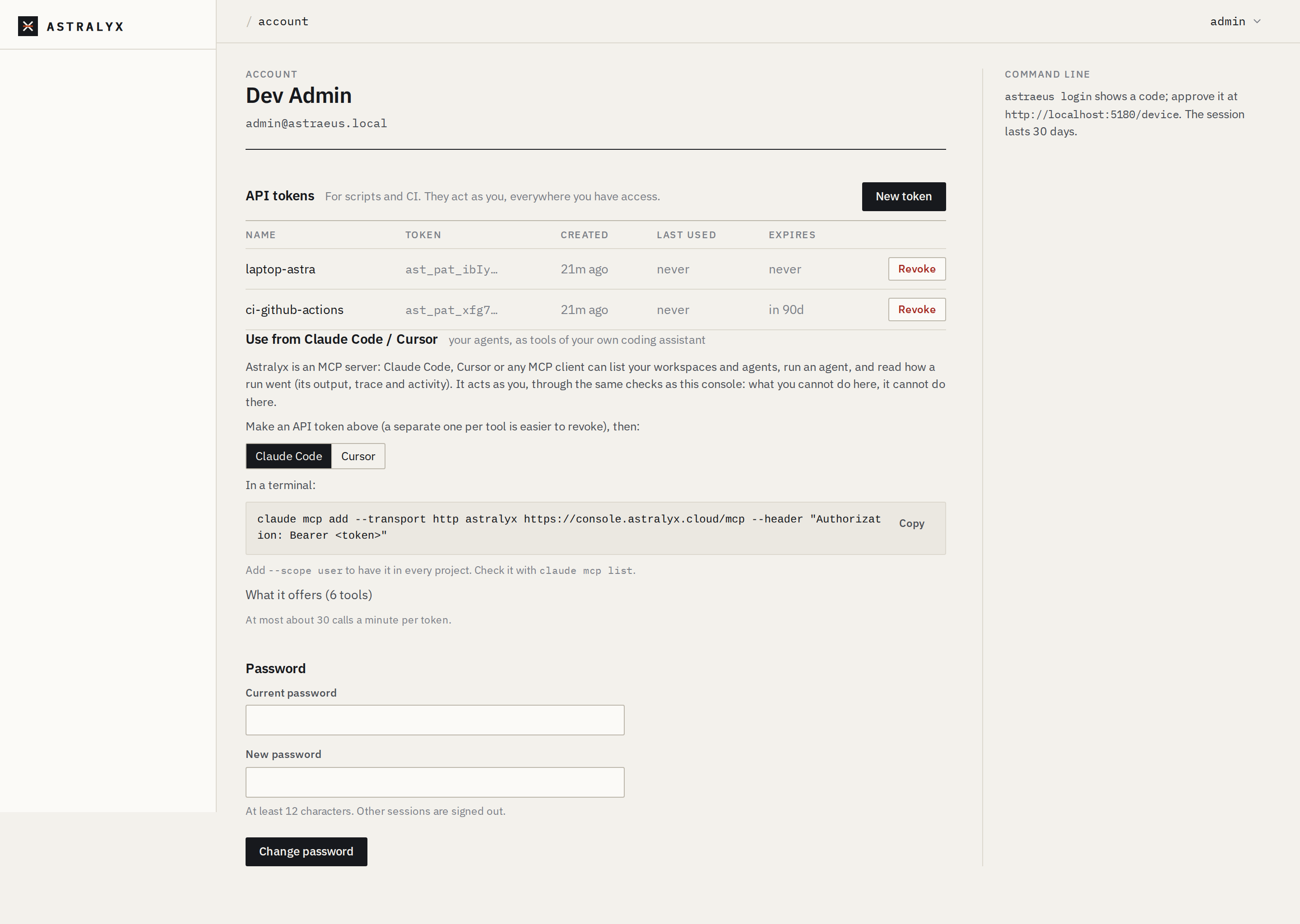
- Open the account menu (top right) and choose Account & tokens.
- Under API tokens, select New token.
- Enter What it's for and, optionally, Expires after (days) (empty for never).
- Select Create token and copy the token now: it is not shown again.
The CLI does not create tokens. A token made in the console works as
ASTRA_TOKEN for astra; see CLI.
You must already be signed in, with a session or another token:
Use it as a bearer token:
Revoke a token#
In Account & tokens → API tokens, select Revoke. Through the API,
DELETE /me/tokens/{id} answers 204. Revocation takes effect on the next
request. GET /me/tokens lists your tokens, without their values.
Troubleshooting#
| Symptom | Cause | Fix |
|---|---|---|
403 WRONG_ACCOUNT when accepting an invitation |
You are signed in with another e-mail. | Sign in, or sign up, with the invited address. |
403 DOMAIN_NOT_ALLOWED at SSO sign-in |
The e-mail's domain is not in Allowed e-mail domains. | Add the domain, or empty the list. |
401 SSO_FAILED: "the provider has not verified this e-mail" |
The ID token lacks email_verified: true. |
Configure the provider to release a verified email claim to this client. |
401 SSO_FAILED: "the sign-in took too long" |
More than 10 minutes passed at the provider. | Start again from /sso. |
400 DISCOVERY_FAILED when saving SSO |
The discovery document is unreachable, or names another issuer. | Use the issuer URL exactly as the provider publishes it. |
403 ORG_SUSPENDED |
Astralyx suspended the organisation; the message says why. | Contact Astralyx support. |
429 TOO_MANY_ATTEMPTS |
Too many sign-in attempts; see Limits. | Wait for the window to pass (15 minutes for sign-in). |