Quick start#
This page takes you from a new account to a container running on one of your machines, in the console. It takes about ten minutes, most of it the installer downloading the agent. You need one Linux machine you can run a command on as root; it does not need a GPU.
Before you begin#
- A Linux machine with systemd, x86-64 or ARM64, glibc 2.28 or newer (Ubuntu 20.04, Debian 11, RHEL 8 and later; not Alpine), and root access. The installer brings the container runtime; Docker is not needed. See Requirements.
- Outbound HTTPS from the machine to the console and to the Astraeus address
shown in the console (on Astraeus Cloud,
api.astralyx.cloud). No inbound port is needed. - For NVIDIA GPUs: the driver, 535 or newer recommended. Where your
distribution packages it, the installer offers to install it. AMD GPUs need
only the kernel's
amdgpudriver. See GPUs.
1. Create an account#
- Open the console at
https://console.astralyx.cloudand choose Create an account. - Sign up with Sign up with Google or Sign up with GitHub (when the console offers them), or with your Name, E-mail and a Password of at least 12 characters, then Create account.
- With e-mail, open the link the console sends to confirm the address, then Sign in.
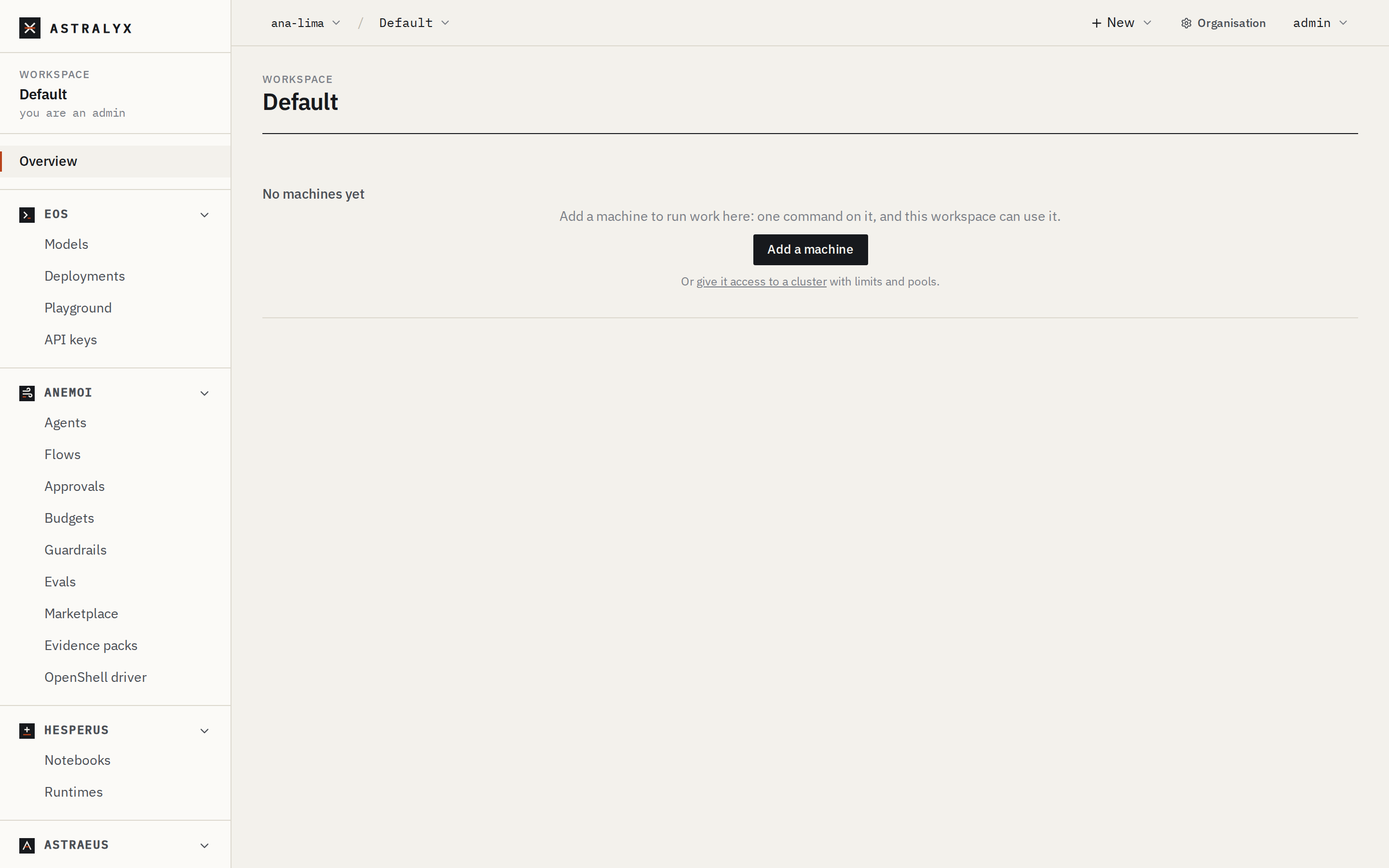
The first time you sign in, you get an organisation of your own named
<your name> (personal), with a workspace Default (short name
default), and you are its owner. If you first sign in through your
organisation's single sign-on, you join that organisation instead and no
personal organisation is made. An invitation adds you to another
organisation once you accept it.
A workspace for a team
To work with others, create an organisation (New organisation in the organisation switcher of the top bar), invite members and create a workspace per team. See Organisations, workspaces and clusters.
2. Add a machine#
You must be an owner or admin of the organisation (you are, in your personal one).
- In the workspace, open Astraeus → Machines and choose Add machine. In a workspace with no machines yet, the overview shows Add a machine directly.
- Optionally set a Pool, as
key=value(for examplepool=a100). Workspaces are granted machines by pool. Leave it empty for a first machine. -
Choose Get the install command.
If your organisation has no dedicated cluster, the dialog says the machine joins Astraeus Cloud, the shared cluster operated by Astralyx, as your organisation's own machine: no one else's work runs on it. The workspace gets access to that cluster, with no limits.
-
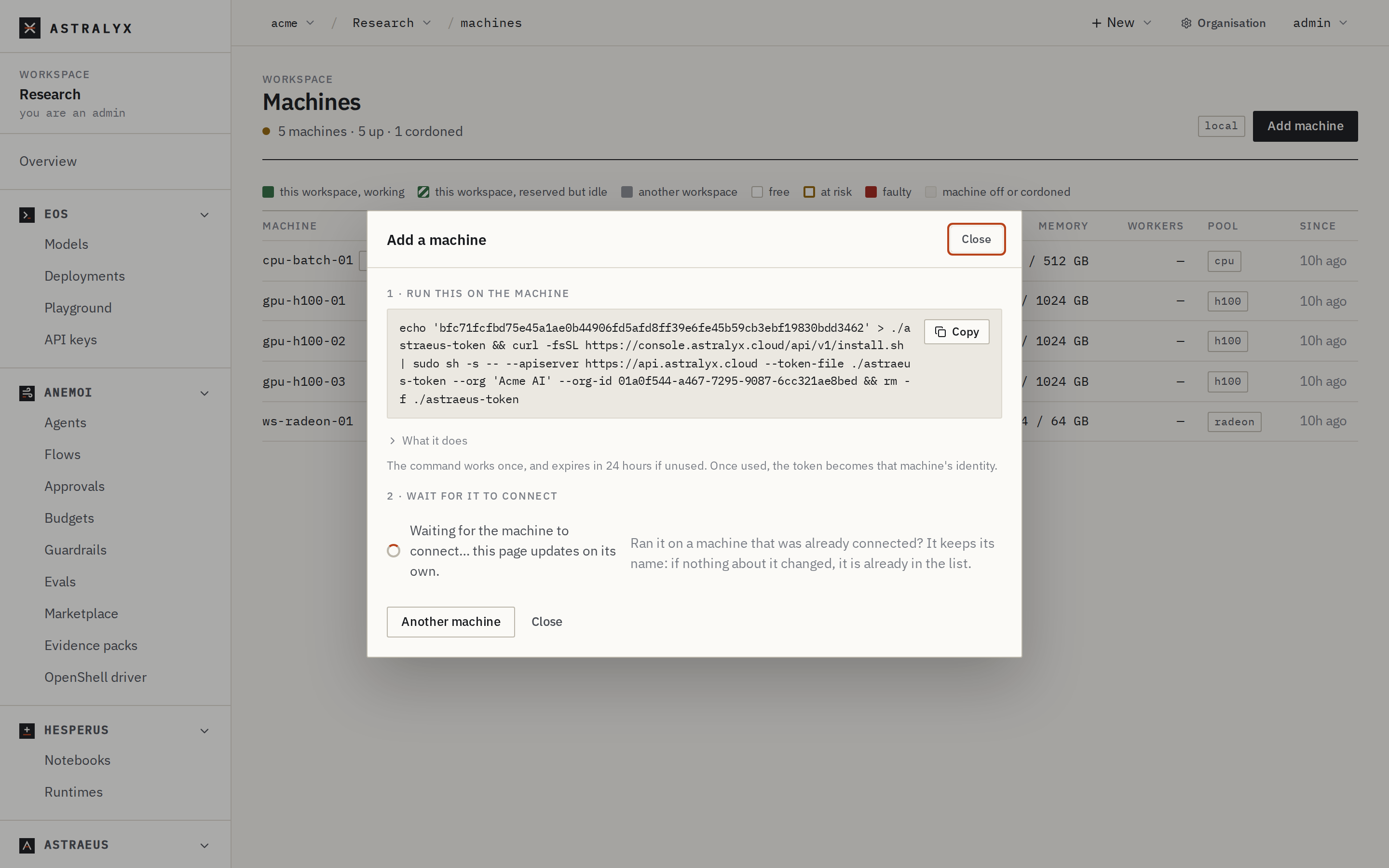
Copy the command under 1 · Run this on the machine. It looks like this:
$ echo '<token>' > ./astraeus-token && curl -fsSL https://console.astralyx.cloud/api/v1/install.sh | sudo sh -s -- --apiserver https://api.astralyx.cloud --token-file ./astraeus-token --releases https://console.astralyx.cloud/releases --org '<organisation>' --org-id <id> && rm -f ./astraeus-tokenThe token works once and expires after 24 hours if unused. Once used, it becomes that machine's identity.
-
Run it on the machine, in a terminal. In a terminal the installer asks where the machine should keep data for drives (it recommends the local disk with the most free space), and, if a GPU has no driver, whether to install one.
The installer checks the download against the release's checksums, installs the agent as systemd services, keeps the token in
/etc/astraeus/token(readable by root only) and starts them. -
Back in the console, the dialog shows Waiting for the machine to connect… and updates on its own. When the machine registers, it shows Machine <name> connected. The machine takes its hostname as its name.
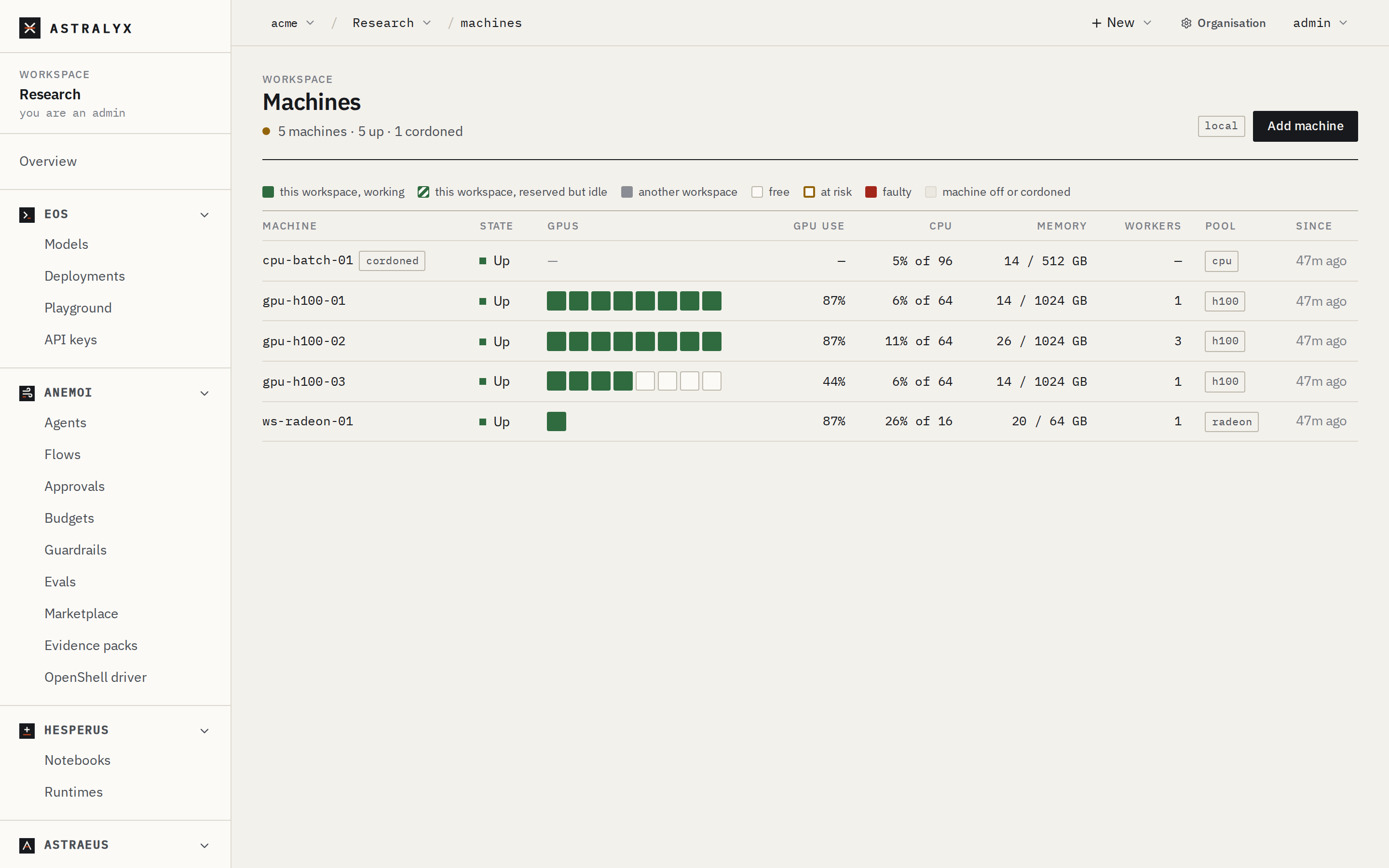
The machine now appears in Machines with its state, GPUs, CPU and
memory. A healthy machine is Up.
3. Start a run#
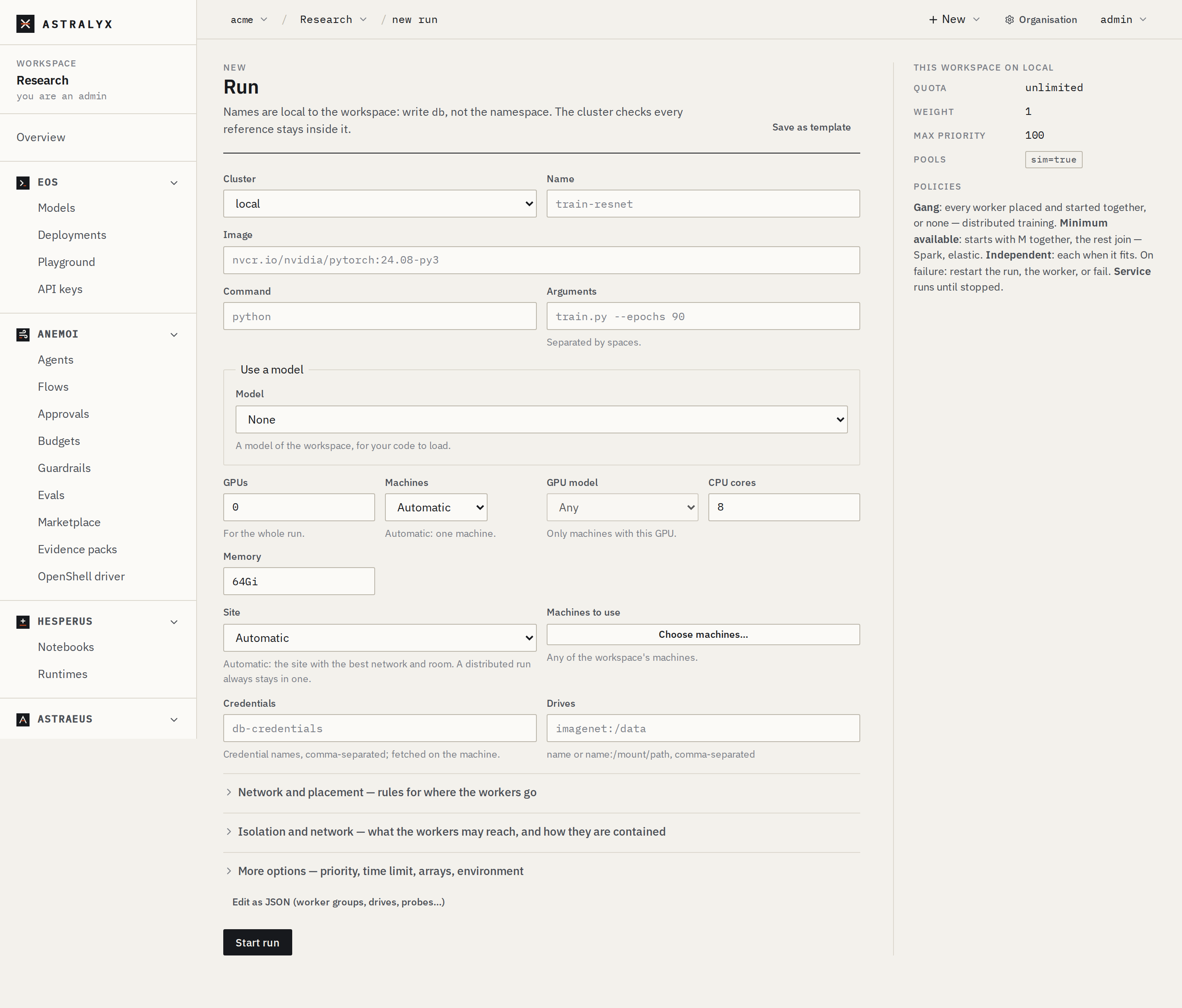
- Choose New → Run at the top of the console, or New run on the Runs page.
-
Fill in the form:
Field Value Why Name helloLower-case letters, digits and dashes; unique in the workspace. Image busybox:1.36Any image the machine can pull. Command echoReplaces the image's entrypoint. Arguments hello from AstraeusSplit on spaces. GPUs 01or more on a GPU machine.CPU cores 1The form starts at 8: lower it, or a small machine never has room.Memory 512MiThe form starts at 64Gi: lower it for the same reason.The Arguments field splits on spaces and does not understand shell quoting. For a command with quotes, choose Edit as JSON (worker groups, drives, probes…) and write the run directly:
-
Choose Start run.
The console opens the run's page. The run is Pending until Astraeus
places its worker, then Running, then Completed when the container exits
with code 0.
4. Watch it and read its log#
On the run's page:
- The header shows the state and, while it waits, why — for example Waiting for a machine with room.
- Workers lists each worker (
hello-0), its state, the machine it runs on, its GPUs and its exit code. - Logs shows the worker's output, read from the machine over the machine's own connection. Tick Follow to keep it updating, Download to save it.
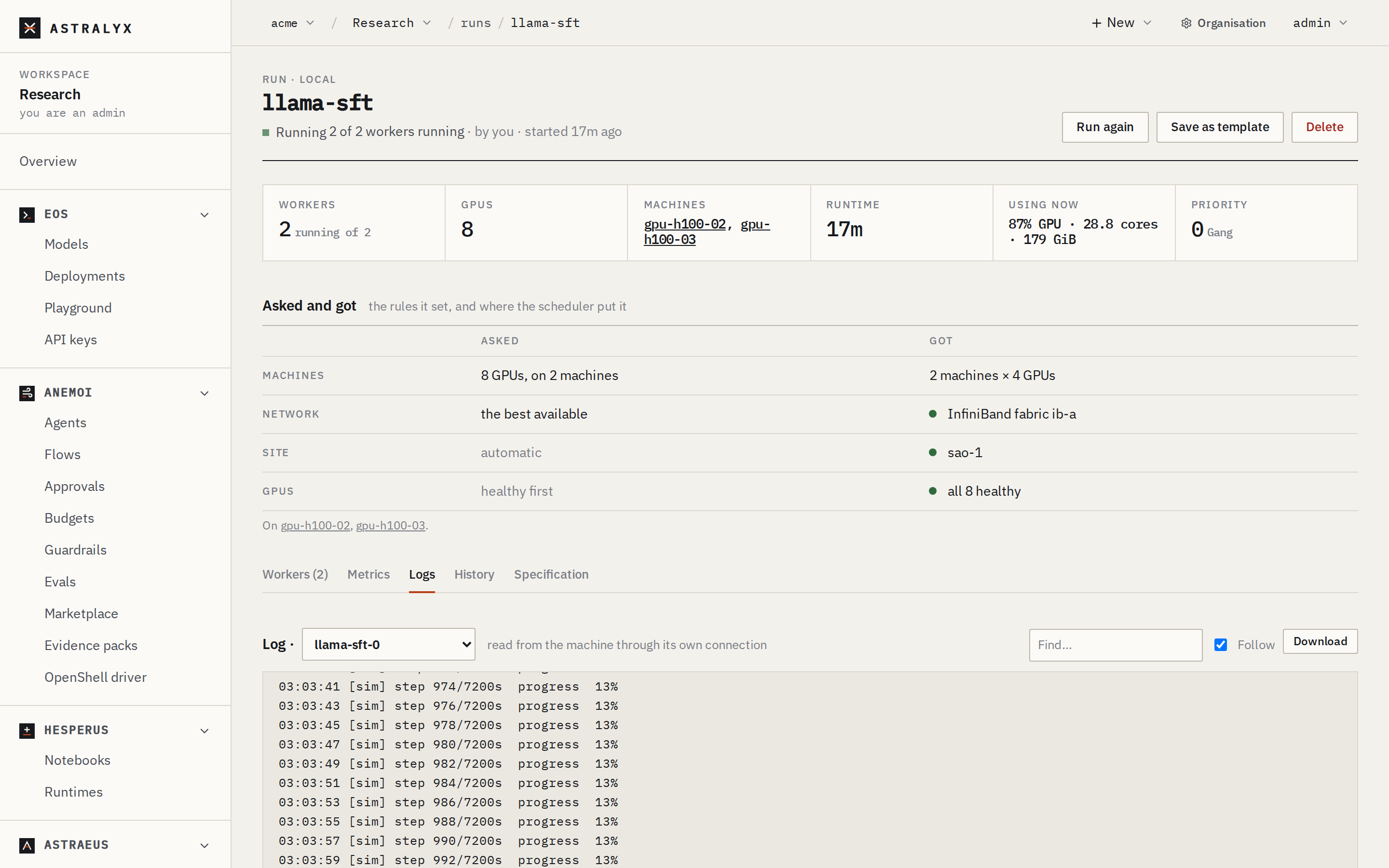
When it has completed, choose Run again to start a copy under a new name, or Delete to remove it.
Troubleshooting#
| Symptom | Cause | Fix |
|---|---|---|
| The dialog keeps waiting for the machine | The installer failed, or the machine cannot reach the Astraeus address over HTTPS | Read the installer's output; check systemctl status astraeus-agent and journalctl -u astraeus-agent on the machine. See Machine troubleshooting. |
| Get the install command says the limit is reached | Astraeus Cloud allows 10 machines per organisation by default, counting tokens not used yet | Remove a machine, or ask Astralyx for more at [email protected]. |
The run stays Pending |
No machine the workspace may use has room, or the run asks for something none has | Open the run: Why it is not running yet gives the reason per machine. See Troubleshooting and FAQ. |
| The run fails with The container image could not be downloaded | Wrong image name or tag, or a private registry | Check the image; a private registry needs a registry credential. |
Related#
- Your first run — a GPU training run, field by field
- Add a machine
- Install the CLI
- Submit a run
- Organisations, workspaces and clusters