Administration#
This section is for the people who run an Astralyx organisation: its owners and admins. It covers what applies to the whole organisation, whatever product a team uses — who may sign in and what they may do, where teams work, which machines they get and how much of them, what it costs, and how you are told and kept informed. Each page is a reference you can rely on alone; where a setting belongs to one product, the page links to that product's documentation.
What an organisation is made of#
Three objects decide who can do what, and where:
- An organisation is who administers and pays. It owns the members, the workspaces, the clusters and their machines, single sign-on, alerts, event streams, prices and the audit log.
- A workspace is where a team works. Everything a team makes — runs, drives, credentials, endpoints, models and deployments, agents and flows, notebooks — lives in one workspace, and is invisible to the others.
- A cluster is where work runs: a set of machines you enrolled, with Astralyx's scheduling around them. A workspace runs work on a cluster only once an admin gives it access to that cluster, on terms: a quota, a fair-share weight, pools of machines, a highest priority and what it may take from the machines.
flowchart TD
  O["Organisation<br/>members · SSO · alerts · audit · prices"]
  O --> W1["Workspace: Research<br/>its people and roles"]
  O --> W2["Workspace: Platform<br/>its people and roles"]
  O --> C["Cluster<br/>machines in pools"]
  W1 -- "access + terms<br/>(quota, pools, priority)" --> C
  W2 -- "access + terms" --> C
Every product runs on the same three objects. A run, an Eos model replica, an Anemoi agent's sandbox and a Hesperus notebook kernel are all work of a workspace, placed on the machines its access allows, counted against its quota and metered in its usage. So the pages here apply to all four products.
Who administers#
Access has two levels; Roles and permissions has the full tables.
| Level | Roles | Administers |
|---|---|---|
| Organisation | owner, admin, member |
Owners and admins manage everything on this page. Members work in the workspaces they are added to. |
| Workspace | admin, editor, viewer, auditor |
A workspace admin manages that workspace's people and settings. Organisation owners and admins are admins of every workspace. |
A workspace admin who is only a member of the organisation runs the
workspace day to day but cannot create workspaces, give a workspace access
to a cluster, change its quota or touch machines: those are organisation
decisions.
What you manage, and where#
In the console, the organisation's pages are under its name in the top bar (or Organisation in a workspace's breadcrumbs). Owners and admins see every entry; members see Overview, Workspaces, Clusters & machines, Usage, Alerts, Marketplace and Members, with what their role allows.
| Task | Console | Page |
|---|---|---|
| Create, switch, rename or delete an organisation | Organisation menu (top bar), Overview | Organisation |
| Invite people, change roles, remove people | Members | Members and invitations |
| Know who may do what | — | Roles and permissions |
| Sign-in through your identity provider | Single sign-on | Single sign-on and sign-in |
| Create workspaces, add their people, delete them | Workspaces, a workspace's Settings | Workspaces |
| Give a workspace a cluster, a quota, pools, a priority | A workspace's Settings | Quotas, pools and terms |
| Add, update, cordon, move and remove machines; data locations; reservations | Clusters & machines | Clusters and machines |
| See usage and cost, set prices | Usage, a cluster's Prices | Usage, cost and budgets |
| Be told when things fail | Alerts | Alerts |
| Read the audit log, stream events to a SIEM | Audit log, Event streams | Events, audit and event streams |
| Give scripts and CI access | Account & tokens | API tokens and automation |
| Rules for every agent of the organisation; the template marketplace | Marketplace | Agent governance |
| Review the organisation's security | — | Security checklist |
| Something is wrong | — | Troubleshooting |
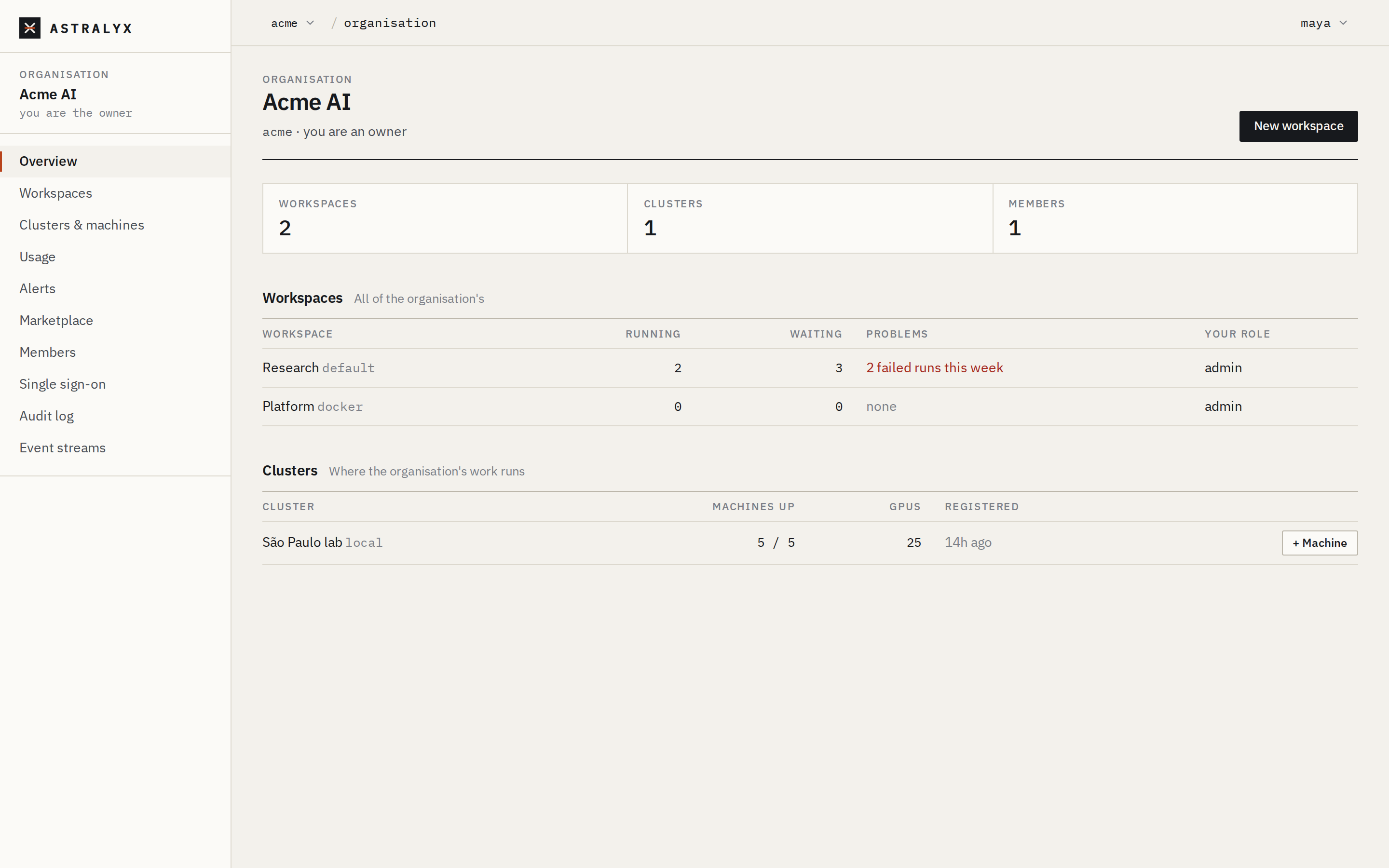
Product settings an admin should know#
Most settings are organisation-wide. A few belong to one product and are documented with it:
| Product | Settings | Where |
|---|---|---|
| Astraeus | Machines and their pools, labels and topology; GPUs and their faults; reservations; drives and data locations | Machines, Pools, labels and topology, GPUs, Reservations, Drives |
| Eos | A workspace's API keys, the hosted inference gateway, deployments shared with other workspaces, token prices and token usage | Eos; token prices and usage in Usage, cost and budgets |
| Anemoi | Agent budgets, approvals, workspace guardrails, evaluations, evidence packs, retention policies | Anemoi; the organisation's guardrails and marketplace in Agent governance |
| Hesperus | Notebook runtimes and their idle stop | Hesperus |
Set up a new organisation#
A sensible order for a team's first day:
- Invite your admins and make a second owner, so the organisation never depends on one person. See Members and invitations.
- Turn on single sign-on if your company has an identity provider. See Single sign-on and sign-in.
- Create one workspace per team and add its people with the narrowest role that lets them work. See Workspaces.
- Add machines to a cluster and put them in pools. See Clusters and machines.
- Give each workspace access to the cluster, with a quota, its pools and a maximum priority, once capacity is shared. See Quotas, pools and terms.
- Set prices on your dedicated clusters, to see each team's cost. See Usage, cost and budgets.
- Add alert rules for failed runs, machines down and GPU faults, and an event stream to your SIEM if you have one. See Alerts and Events, audit and event streams.
- Walk through the Security checklist.