Clusters and machines#
Every product's work — runs, model replicas, agent sandboxes, notebook kernels — runs on machines you enrolled in a cluster. This page is the organisation admin's view of them: which clusters the organisation has, how to add machines, and the day-to-day actions on a machine (update, cordon, pool, data location, GPU faults, reservations, removal). The Machines section of Astraeus has the details of each machine: requirements, the installer, GPUs and networking.
Before you begin#
- Everything on this page is for organisation owners and admins. Members see the organisation's clusters, their prices and reservations, and — inside a workspace — the machines in its pools.
- Astralyx operates every cluster. You bring the machines; they connect out over HTTPS and need no inbound port.
Kinds of cluster#
| Astraeus Cloud | Dedicated cluster | |
|---|---|---|
| Who uses it | Shared by organisations; yours is a tenant of it | Your organisation only |
| How you get it | Use Astraeus Cloud on Clusters & machines, or add your first machine | Ask [email protected]; it then appears in your clusters |
| Machines | Yours only run your workspaces' work, and see nothing of other organisations | All yours |
| Machine limit | 10 by default, counting join tokens not used yet | None |
| Prices | Set by Astralyx; you see them | Set by you, for showback |
| Short name | default (or cloud / hosted-cloud if you already have a cluster called default) |
Chosen with Astralyx |
On Astraeus Cloud, isolation between organisations is a guarantee, not a setting: your machines run only your workspaces' work, your workers reach only your machines, and your names resolve only on your machines. See Security model.
Use Astraeus Cloud#
Open Organisation → Clusters & machines. When the organisation does not use Astraeus Cloud yet, a notice offers it: select Use Astraeus Cloud. The cluster's page opens, ready for machines.
You do not need to do this first: adding the first machine to a workspace whose organisation has no cluster joins Astraeus Cloud in the same step.
The cluster's page#
Organisation → Clusters & machines lists the organisation's clusters. Select one to open its page: how many machines it has and how many are up, its GPUs, and five tabs.
| Tab | What it shows | See |
|---|---|---|
| Machines | Every machine of the organisation on the cluster: state, address, GPUs, CPU, memory, pools, agent release, time in state; Update and Remove | Add machines, Update agents, Remove a machine |
| Reservations | Windows on machines for some workspaces, or for maintenance | Reserve machines |
| Events | The machines' events: joined, down, back, conditions | Events, audit and event streams |
| Prices | The cluster's price table | Usage, cost and budgets |
| Settings | The cluster's name; removing it from the organisation | Rename or remove a cluster |
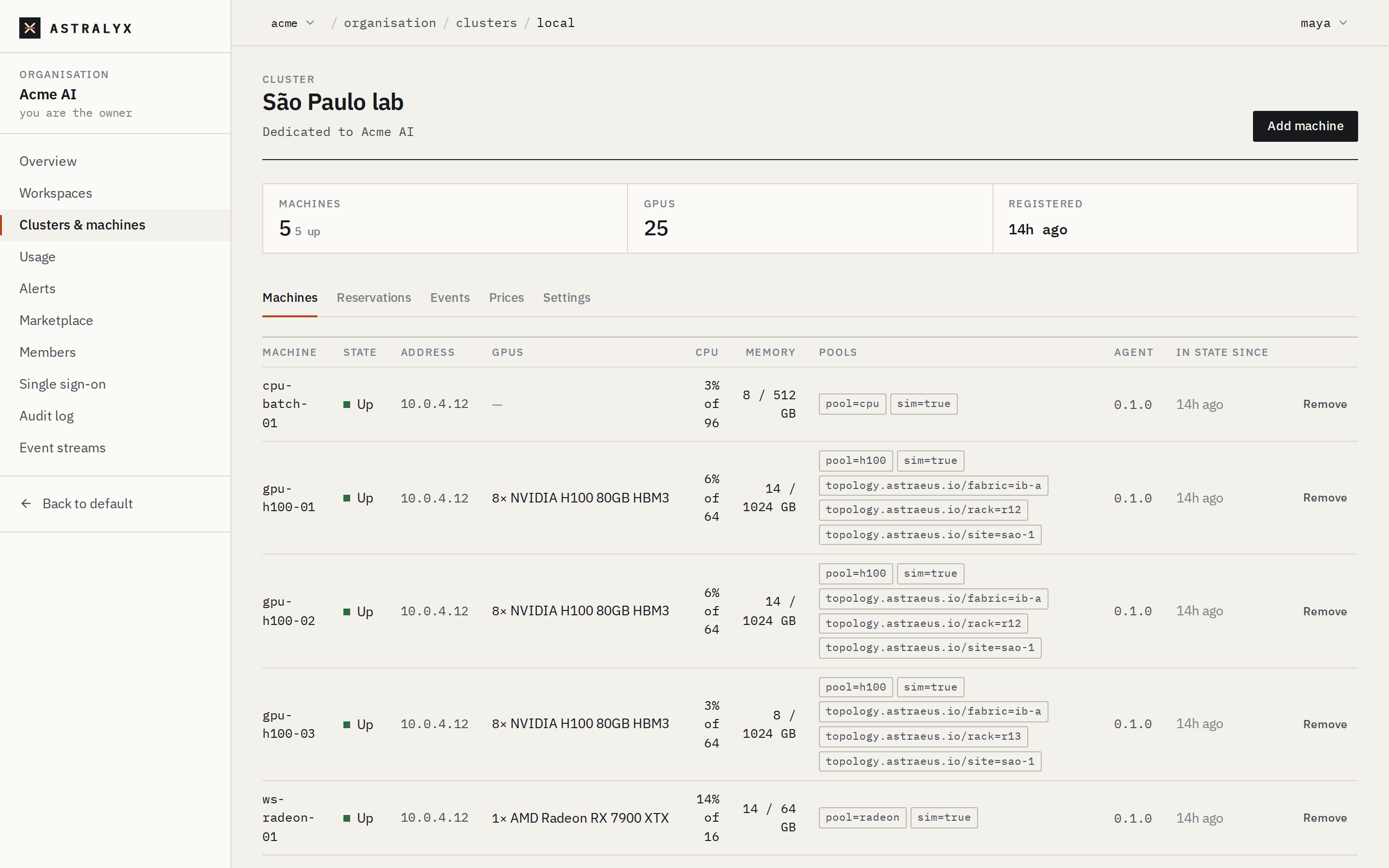
A workspace's own Machines, GPUs and Topology pages show the machines in its pools. Organisation admins also get the machine actions there: open a machine from a workspace's Machines to cordon it, change its pool, choose its data location or remove it.
Add machines#
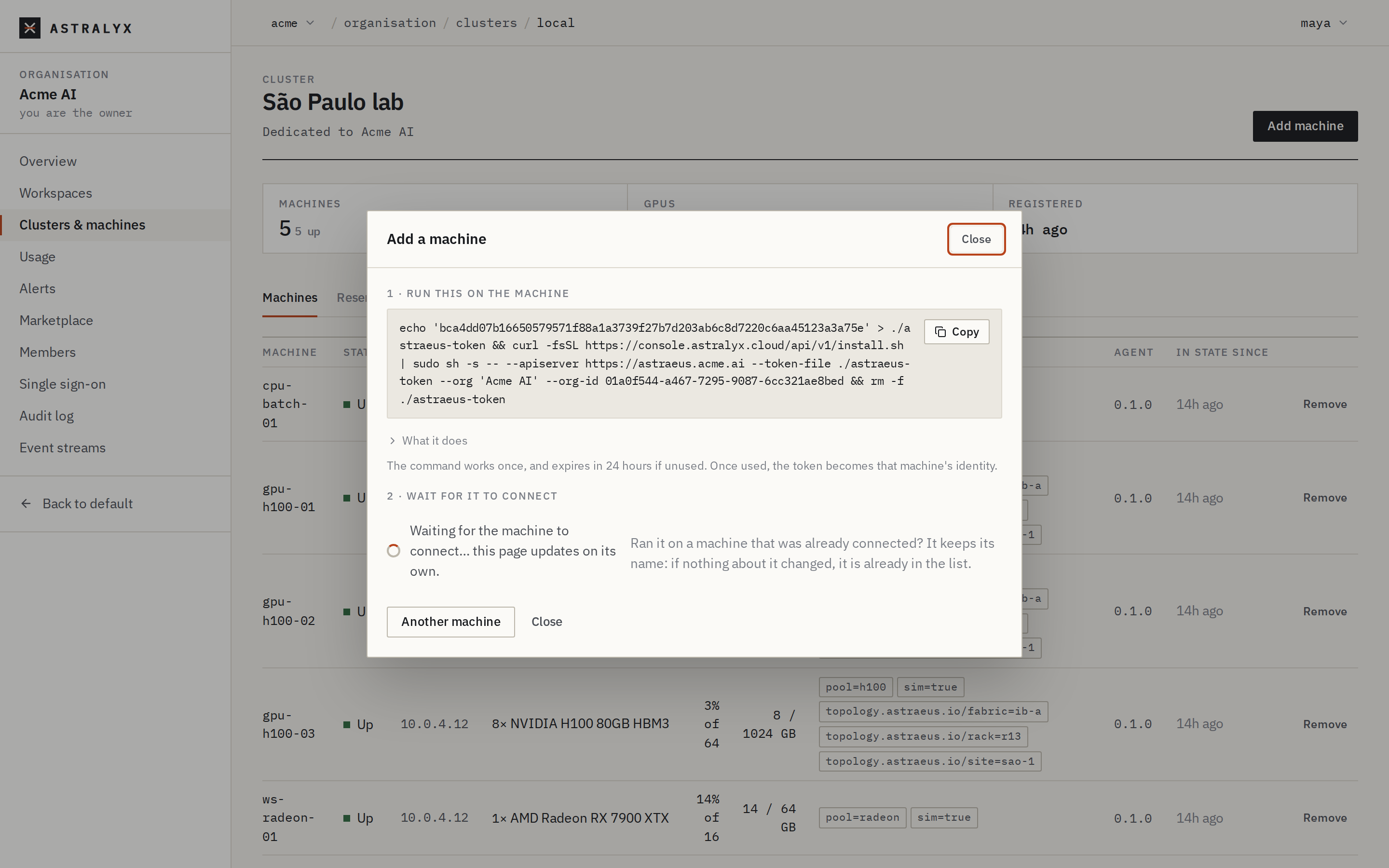
A machine joins with a one-time join token, carried by an install command you run on it as root.
- Open the cluster's page and select Add machine (or + Machine on the organisation's overview, or Add machine on a workspace's Machines).
- Choose the Cluster if the organisation has several.
- Under Pool, enter the machine's pool as
key=value, for examplepool=h100, or pick one the cluster already has. Workspaces granted that pool get the machine. - Select Get the install command.
- Copy the command and run it on the machine. The dialog waits and says Machine <name> connected when it registers.
$ curl -sS -X POST "$ASTRA_URL/api/v1/orgs/acme/clusters/default/enrollment-tokens" \
    -H "Authorization: Bearer $ASTRA_TOKEN" -H "Content-Type: application/json" \
    -d '{"labels": {"pool": "h100"}, "ttl_seconds": 86400}'
{"id":"…","token":"…","labels":{"pool":"h100"},"expires_at":"2026-10-02T09:00:00Z",
 "install":"echo '…' > ./astraeus-token && curl -fsSL https://console.astralyx.cloud/api/v1/install.sh | sudo sh -s -- … && rm -f ./astraeus-token"}
| Field | Type | Default | Description |
|---|---|---|---|
labels |
map | {} |
Labels the machine receives, typically its pool. Reserved label keys are refused (400 RESERVED_LABEL). |
ttl_seconds |
integer | 3600 |
How long the unused token stays valid: 60 to 604800 (7 days); 400 INVALID_TTL otherwise. |
install is the command to run on the machine. Use one token per
machine.
Join tokens:
- are single-use: once a machine joins with one, it becomes that machine's credential and no other machine can use it;
- expire unused after 24 hours when made by the console (the API's
ttl_seconds); - are shown once, in the answer that makes them; Astralyx keeps only a hash;
- on Astraeus Cloud, count towards the machine limit until used or
expired (
403 LIMIT_REACHEDwhen the limit is reached).
An unused token cannot be listed or revoked from the console; it expires by itself. Treat the install command as a secret until it has been used.
For a fleet, run the command from your provisioning tool (one token per machine); see Add a machine. For what the machine needs, see Requirements and Network and firewalls.
Update agents#
The Agent column shows each machine's agent release and marks behind a machine whose release differs from the one the cluster runs.
- On the cluster's Machines tab, select Update next to a machine marked behind, or Update all N behind above the table (machines that are Up).
- Confirm. The console says Updating <machine>: its agents restart in a few seconds.
Running work keeps running during an update: the new agent adopts the
containers. The machine downloads the release from where it was installed
from and checks it against the release's checksums before installing.
Updates are recorded as cluster.node.upgrade. Details and the API:
Update the agent.
Cordon a machine#
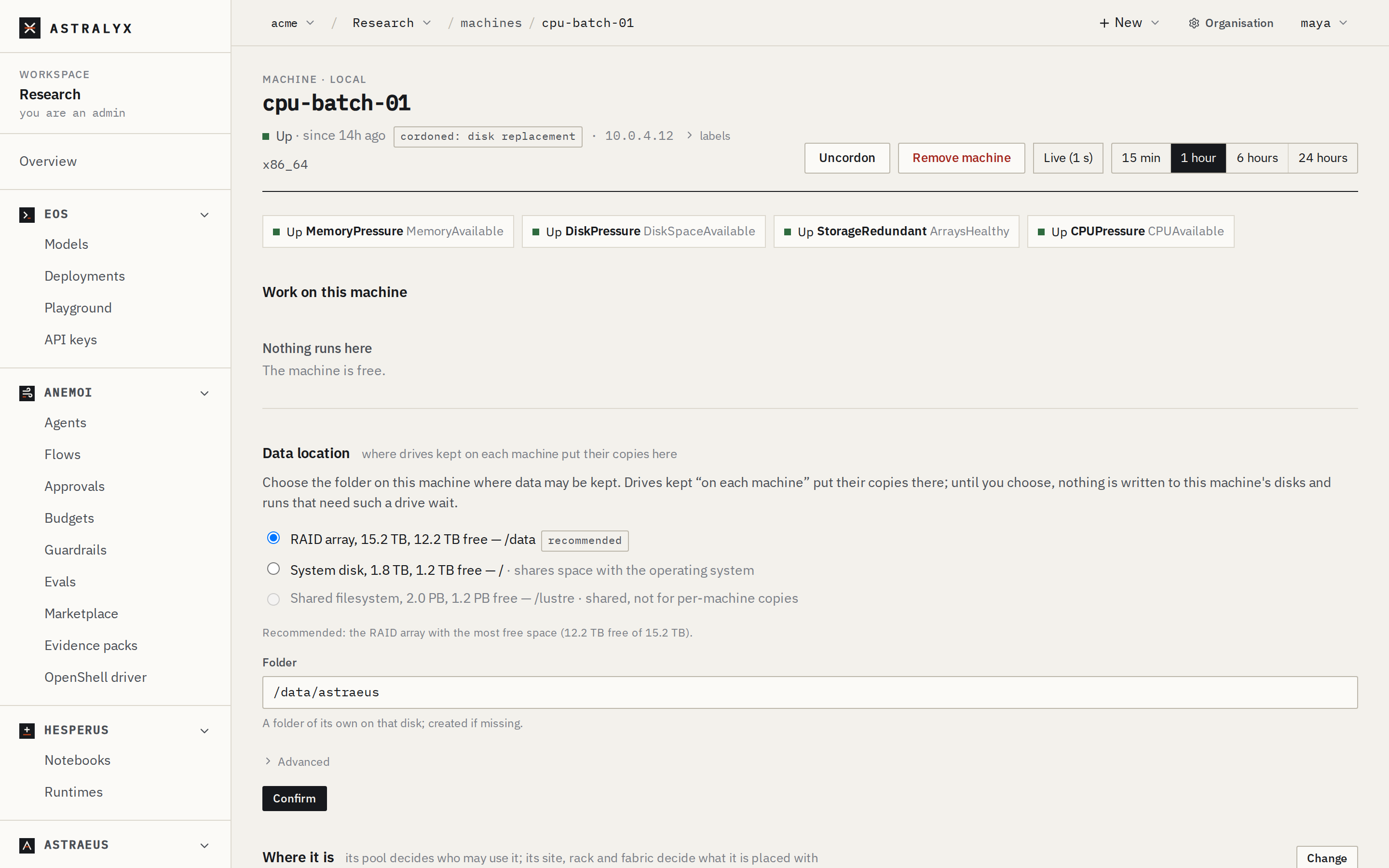
Cordoning stops new work landing on a machine; what runs there keeps running. Use it before maintenance, or to keep a misbehaving machine out of new placements while you look at it.
- Open the machine (from a workspace's Machines, select it).
- Select Cordon and enter why (
maintenanceby default). The machine showscordoned: <reason>, with who and when. - Select Uncordon to put it back in service.
Through the API: POST /orgs/{org}/clusters/{cluster}/nodes/{node}/cordon
with {"reason": "…"}, and …/uncordon. Both are recorded in the audit
log.
To empty a machine for maintenance, cordon it, optionally reserve it for nobody over the window, then wait for its work to end or stop it. Astralyx does not evict work on its own. See Drain a machine for maintenance.
Move a machine to another pool#
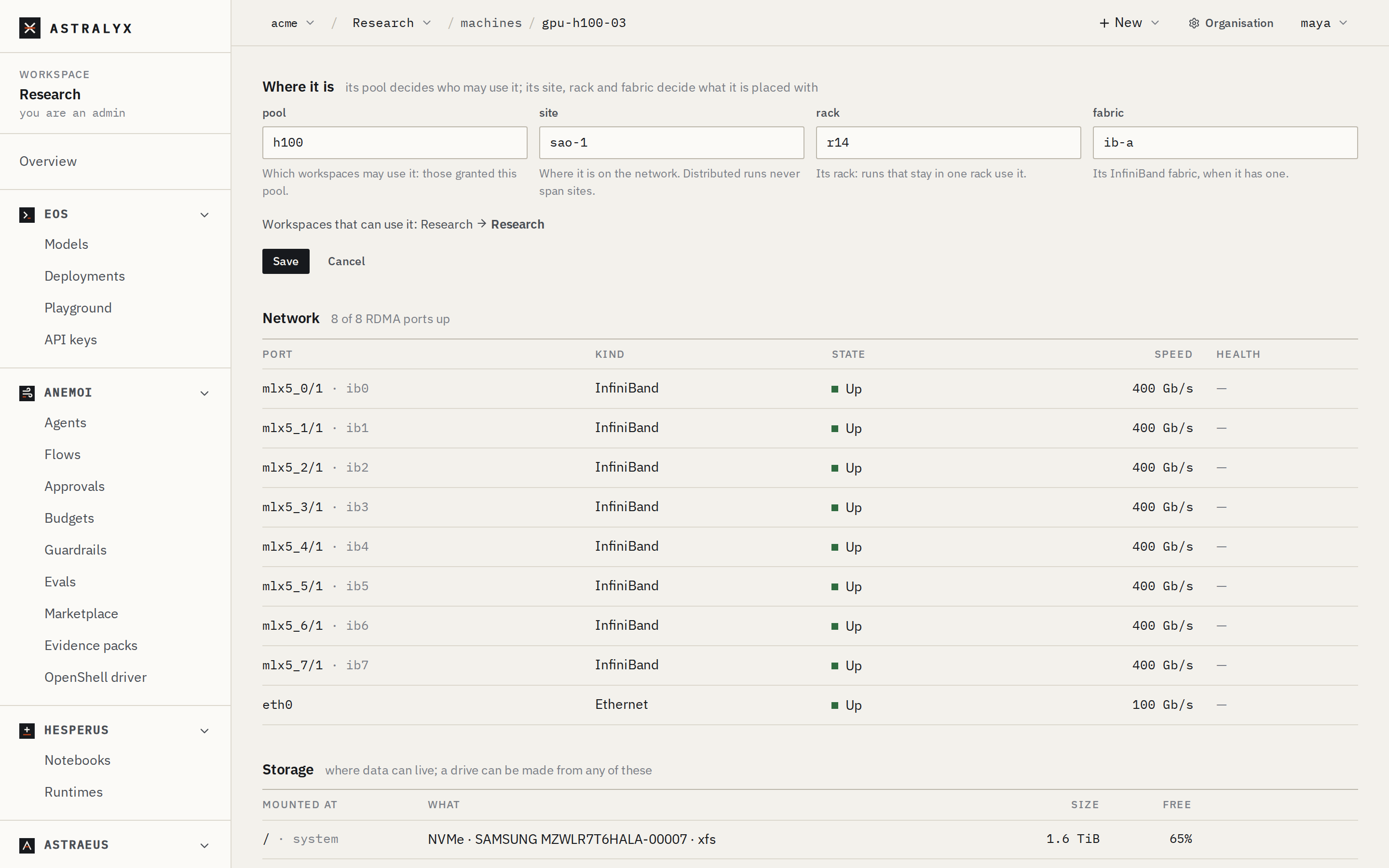
A machine's pool decides which workspaces may use it: those whose terms grant that pool. Its site, rack and fabric say where it is, for placing distributed work. Organisation admins change these four labels from the machine's page; other labels are not changed from the console.
- Open the machine and find Where it is.
- Select Change and edit pool, site, rack or fabric. Empty removes the label. The dialog shows which workspaces can use the machine now and after the change.
- Select Save.
Running work stays where it is; new work follows the change. Values are at
most 63 characters of letters, digits and -._:/ (400 INVALID_LABEL
otherwise). The change is recorded as cluster.node.placement, with the
labels before and after.
$ curl -sS -X PUT "$ASTRA_URL/api/v1/orgs/acme/clusters/default/nodes/gpu-h100-03/placement" \
    -H "Authorization: Bearer $ASTRA_TOKEN" -H "Content-Type: application/json" \
    -d '{"pool": "h100", "rack": "r13"}'
A field left out is kept. See Pools, labels and topology for how pools and topology are used, and Quotas, pools and terms to grant a pool.
Choose a machine's data location#
A machine keeps the copies of drives "kept on each machine" (datasets, caches, model weights) in one folder, its data location. Until an organisation admin chooses it, nothing is written to the machine's disks and runs that need such a drive wait.
- Open the machine and find Data location.
- Choose a disk. The one marked recommended is preselected; shared disks are not offered, and a disk that holds the operating system is marked so.
- Check the Folder (created if missing). Under Advanced, Most space drive copies may take sets a limit: unused copies of cache drives are removed, oldest first, to stay under it.
- Select Confirm.
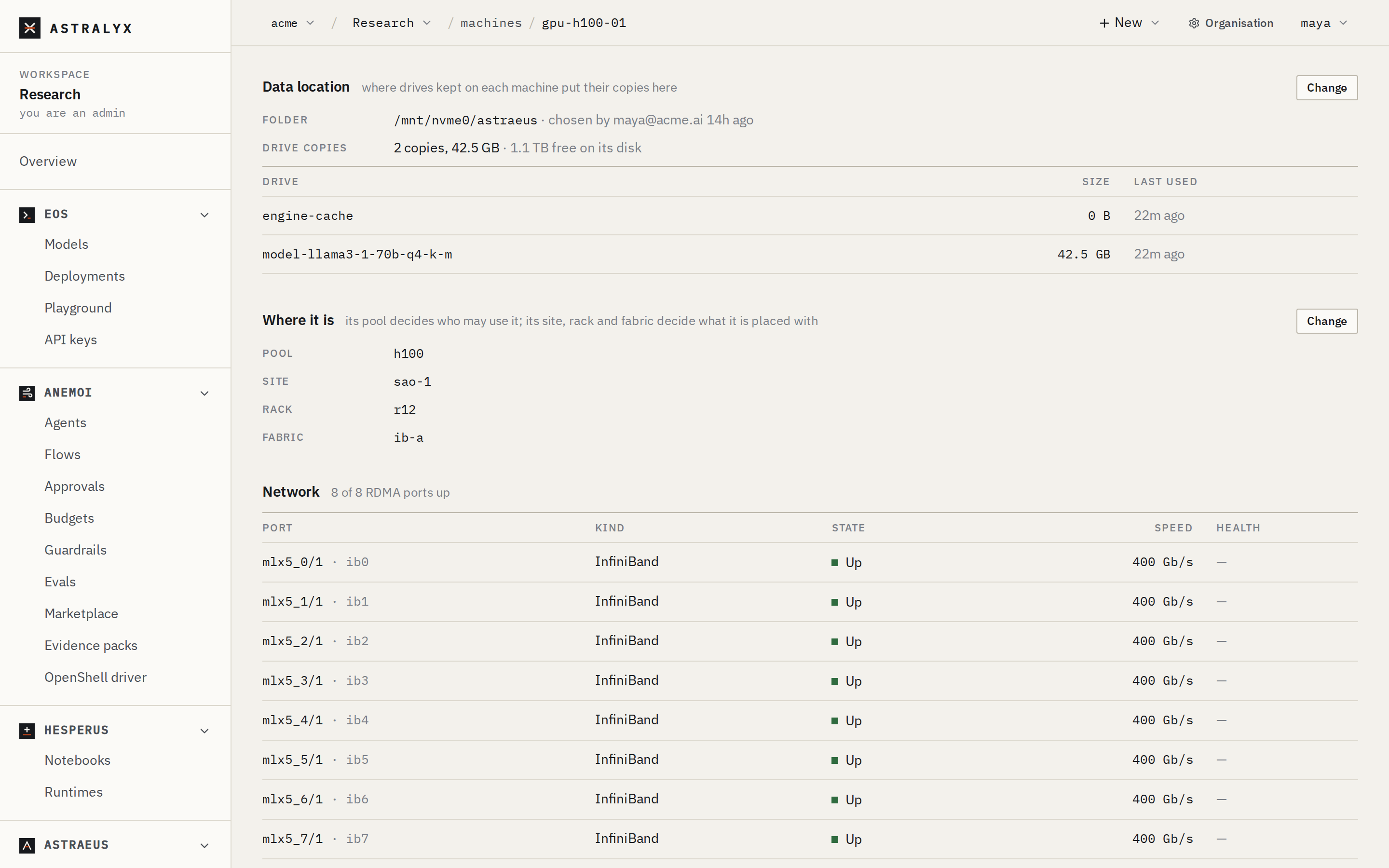
Changing it later (Change) leaves the copies already made where they
are — not moved, not deleted; new copies go to the new folder. The API is
PUT …/nodes/{node}/data-location with {"path": "/mnt/nvme0/astraeus",
"max_bytes": 0} (0: no limit but the disk), and DELETE to forget it,
refused while the machine holds drive copies. See
Drives.
Clear a GPU fault#
A GPU with a fault (a fatal Xid, uncorrectable memory errors, a failed row remap, its NVLink links all down, a failed AMD reset) is fenced: it is never assigned. The fault is latched until an admin clears it or the GPU is replaced. After you reset or replace it, make it schedulable again:
- In a workspace, open GPUs and select the GPU marked Faulty.
- Select Clear fault. The machine must be connected: the request is delivered to it.
If the fault is still there, the machine reports it again and fences the GPU again. See GPUs: health and Clear a GPU fault.
Reserve machines#
A reservation keeps machines for some workspaces over a window — a deadline run, a demo — or for nobody, for maintenance. During the window only the named workspaces' work runs there; before it, only work sure to end in time is placed.
- Open the cluster's Reservations tab and select Reserve machines.
- Tick Machines, or enter Or a pool (
pool=h100: every machine carrying it). - Set From and To (your local time).
- Under For, tick the workspaces. None means nobody's work: maintenance.
- Enter Why and select Reserve.
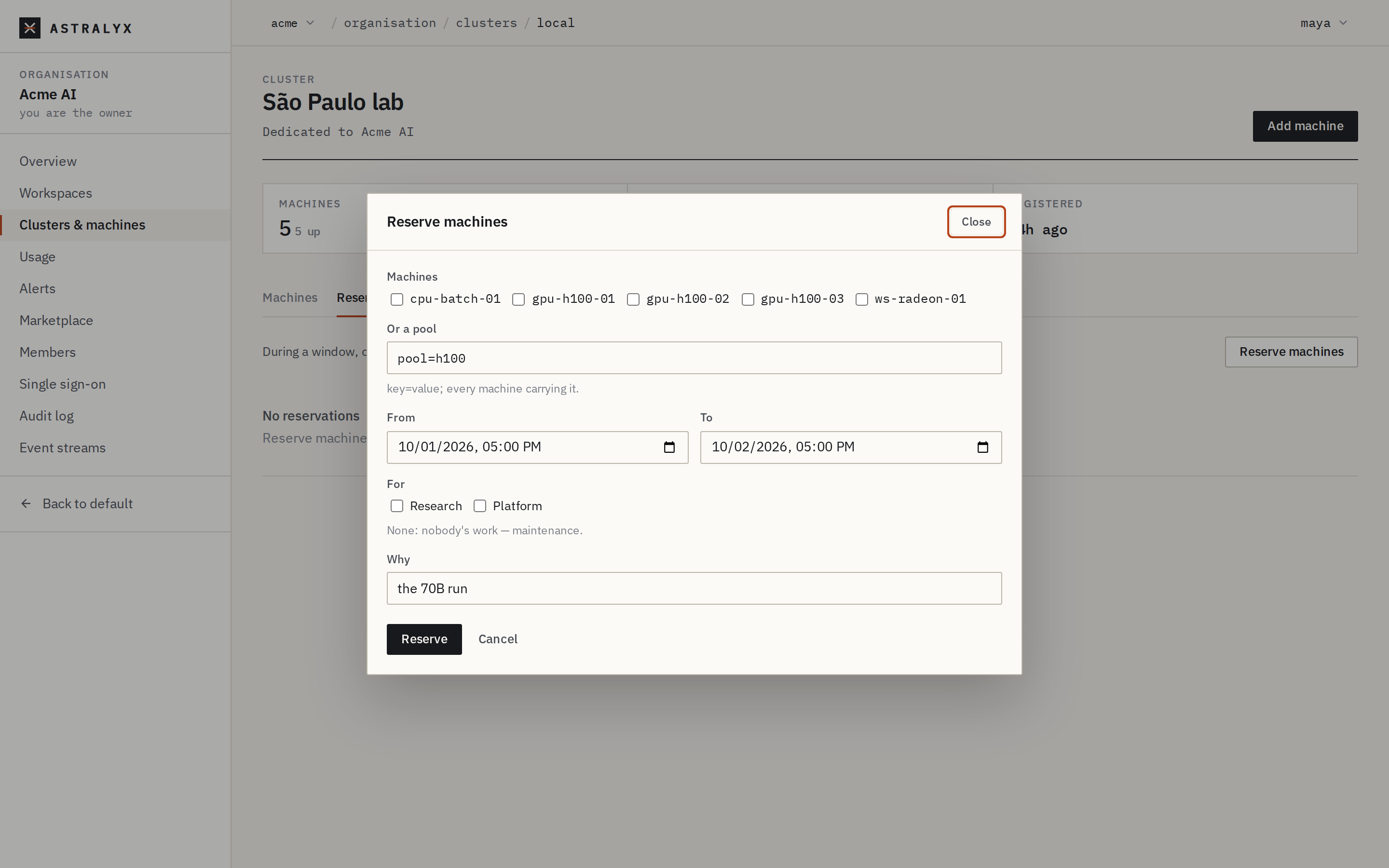
Members see reservations (they explain why work waits); only owners and admins make and remove them. Remove in a row deletes one. See Reservations.
$ curl -sS -X POST "$ASTRA_URL/api/v1/orgs/acme/clusters/default/reservations" \
    -H "Authorization: Bearer $ASTRA_TOKEN" -H "Content-Type: application/json" \
    -d '{"pool": {"pool": "h100"}, "start": "2026-10-03T00:00:00Z", "end": "2026-10-04T00:00:00Z",
         "workspaces": ["research"], "reason": "the 70B run"}'
400 INVALID_RESERVATION when neither machines nor a pool is named;
404 WORKSPACE_NOT_FOUND for an unknown workspace.
Remove a machine#
Remove a machine that is gone, wiped or retired. The cluster forgets it.
- Open the machine and select Remove machine (or Remove in the cluster's Machines tab).
- Read what it means, type the machine's name, and select Remove machine.
- If work still runs there, the dialog says so; select Stop the work and remove to continue.
- If the machine is still online, the dialog gives the command to uninstall the agent on it. Run it there.
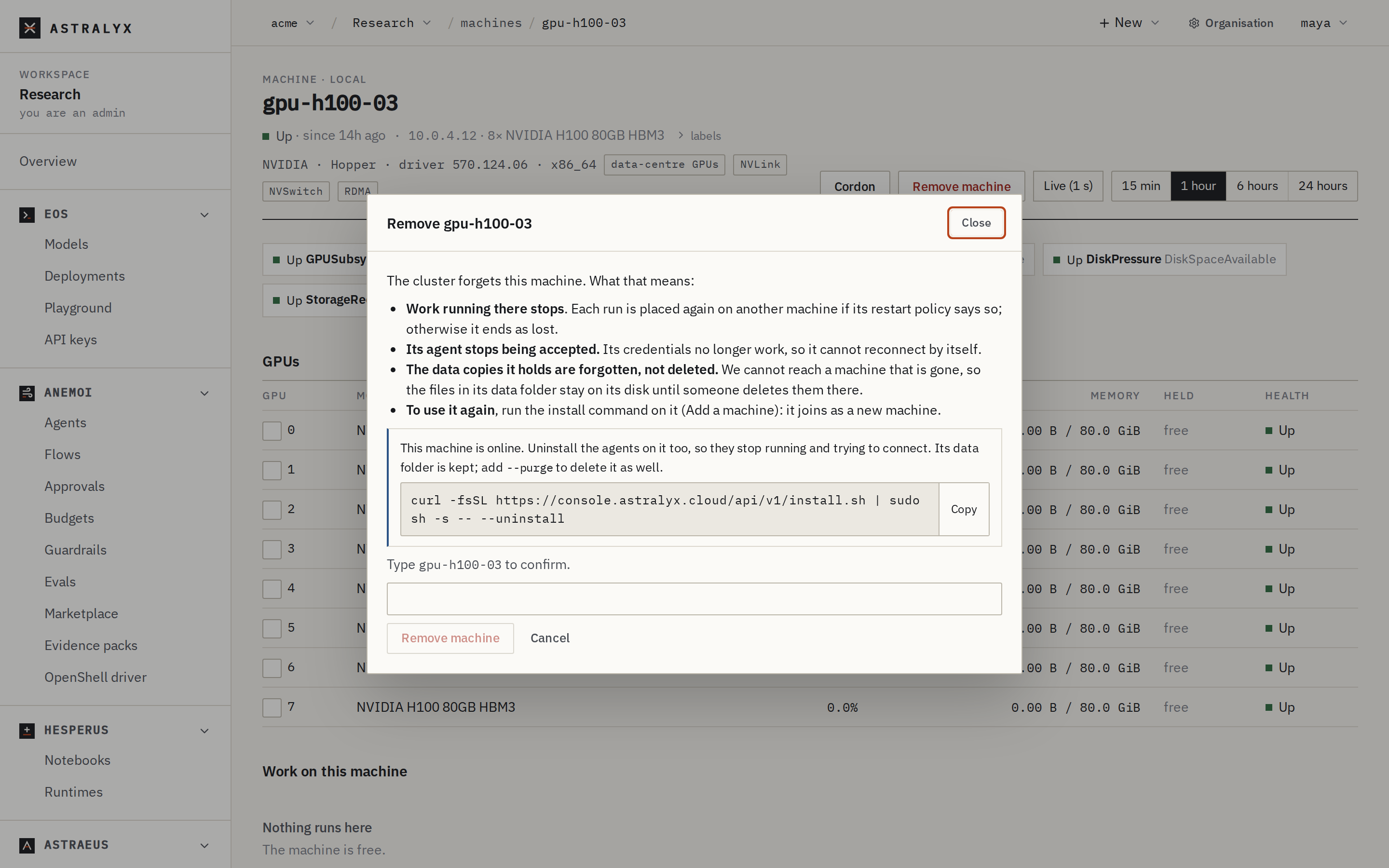
What removal does:
- Work running there stops, and each run is placed again elsewhere if its restart policy says so; otherwise it ends as lost.
- Its credentials stop working at once. It cannot reconnect by itself.
- The drive copies it holds are forgotten, not deleted: the files stay in its data location until someone deletes them there.
- To use it again, run a new install command on it: it joins as a new machine.
Danger
Removing a machine cannot be undone. The API refuses while work runs there
(409 NODE_IN_USE) unless you add ?force=true.
See Update, drain and remove for the API and for moving a machine to another organisation.
Rename or remove a cluster#
On the cluster's Settings tab:
- Name changes how the cluster is shown; its short name does not change.
- Remove cluster takes the cluster out of the organisation. It is refused
while any workspace has access to it (
409 CLUSTER_IN_USE): remove those accesses first. On Astraeus Cloud, your machines stay enrolled there, still yours: use Astraeus Cloud again and they are back. For a dedicated cluster, talk to Astralyx before removing it.
Machine states#
| State | Meaning |
|---|---|
| Idle | Registered, but has not reported yet. |
| Up | Reporting every 10 seconds. Eligible for new work unless cordoned or under pressure. |
| Down | No report for 60 seconds. Nothing new is placed on it; its workers keep their place while their placement stands. |
A Down machine raises the machine_down alert, and machine_up when it
reports again; see Alerts. For a machine that does not join or
keeps going down, see
Machines: troubleshooting.