Members and invitations#
This page covers who belongs to your organisation: inviting people, accepting an invitation, changing someone's organisation role, and removing people. Membership is organisation-wide: a member can then be added to any of its workspaces, in every product. To give someone a role in one workspace, see Workspaces; for what each role allows, see Roles and permissions.
Before you begin#
- To invite, change roles or remove people, you are an owner or admin of the organisation. Only owners make or remove owners.
- Every member can see the organisation's members, their e-mail addresses and roles.
How people join#
| Way | Role they get | When to use it |
|---|---|---|
| An invitation by e-mail | The role you choose: admin or member |
Anyone, one by one. |
| Single sign-on, at their first sign-in | The SSO settings' Role for new members | Everyone at your company, without inviting each. See Single sign-on and sign-in. |
| Creating the organisation | owner |
— |
Nobody is ever invited as owner: owners are made from existing members.
Invite a member#
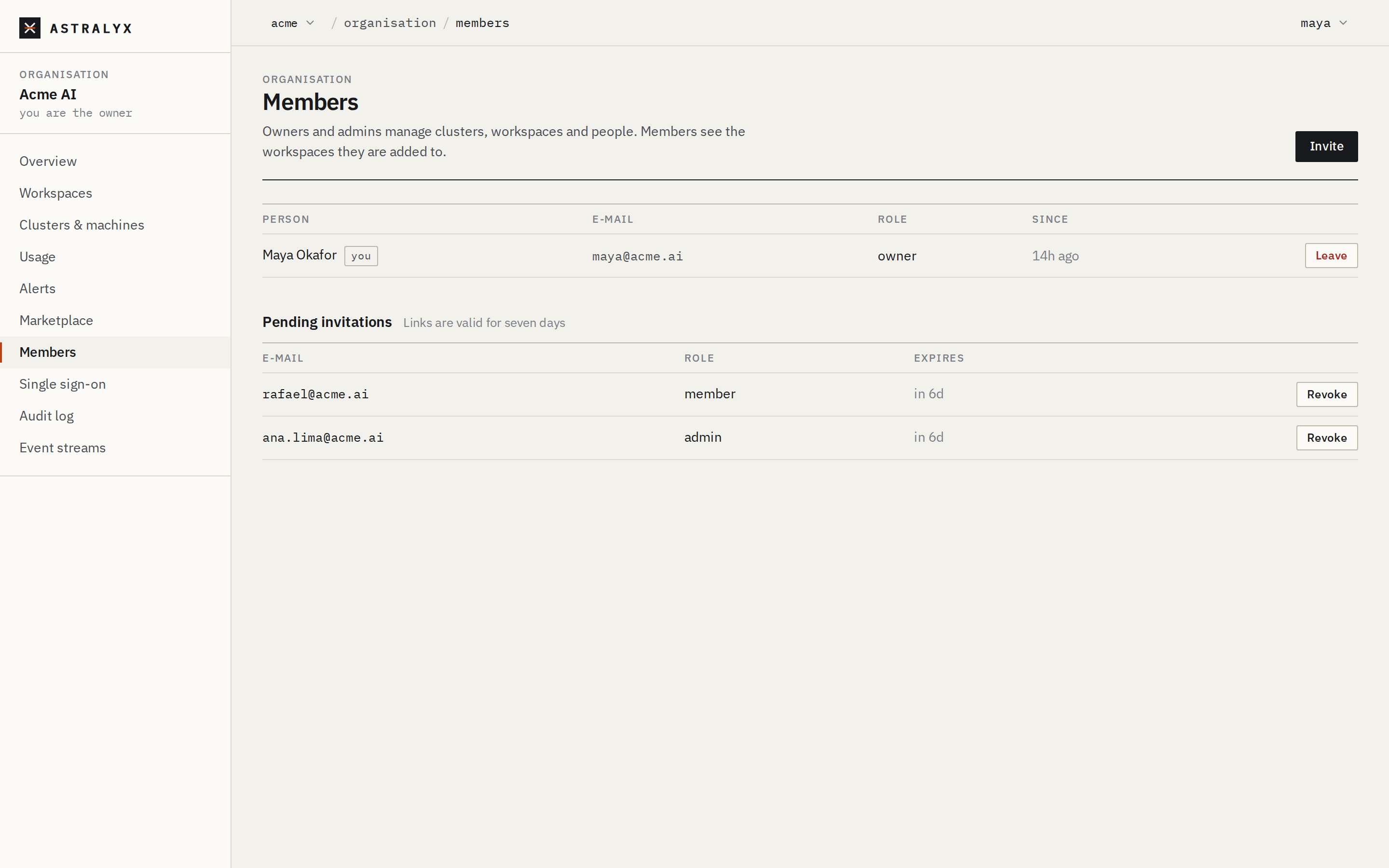
An invitation is a link sent by e-mail, valid for 7 days and usable once. It must be accepted while signed in with an account for exactly the invited address.
- Open Organisation → Members and select Invite.
- Enter the E-mail.
- Choose the Role:
member(sees the workspaces they are added to) oradmin(manages clusters, workspaces and people). - Select Send invitation. It is listed under Pending invitations, with when it expires.
$ curl -sS -X POST "$ASTRA_URL/api/v1/orgs/acme/invitations" \
    -H "Authorization: Bearer $ASTRA_TOKEN" -H "Content-Type: application/json" \
    -d '{"email": "[email protected]", "role": "member"}'
{"id":"0192f3c4-…","email":"[email protected]","role":"member"}
| Field | Type | Default | Description |
|---|---|---|---|
email |
string | — | The address. Stored in lower case; must contain @. |
role |
string | member |
member or admin. |
GET /orgs/{org}/invitations lists the pending invitations (not
accepted, not expired) with id, email, role and expires_at.
The e-mail's subject is Invitation to <organisation short name>; it
names who invited them and carries the link
<console>/invitations/accept?token=…. The link's token is not stored:
Astralyx keeps only its hash, so a lost e-mail cannot be resent. Revoke the
invitation and invite again.
| Error | Cause |
|---|---|
400 INVALID_ROLE |
The role is not admin or member. |
400 INVALID_EMAIL |
The address has no @. |
403 ORG_ADMIN_REQUIRED |
You are a member. |
Revoke an invitation#
In Organisation → Members, under Pending invitations, select Revoke in its row. The link stops working at once.
Revoking is not recorded in the audit log.
Accept an invitation#
What the invited person does:
- Open the link in the e-mail. If they are not signed in, the console asks them to sign in first and comes back to the invitation afterwards. Without an account, they choose Sign up with the invited address.
- Check the line You're signed in as …: it must be the invited address.
- Select Accept. The console opens the organisation.
Accepting also marks the address as verified, since the link proved it. If the person was already a member, their role is left as it is.
| Error | Cause | Fix |
|---|---|---|
403 WRONG_ACCOUNT |
Signed in with another e-mail address. | Sign out, then sign in or sign up with the invited address. |
400 INVALID_TOKEN |
The link expired, was used, or was revoked. | Ask an admin for a new invitation. |
A new member sees no workspace until someone adds them to one (organisation admins see every workspace). Add them next: Add people to a workspace.
Change an organisation role#
In Organisation → Members, choose the new role in the person's row. The change is immediate.
- Admins can switch people between
adminandmember. - Only owners see
ownerin the list, and only owners can change an owner's row. - Your own row cannot be changed from the console.
| Error | Cause |
|---|---|
400 INVALID_ROLE |
The role is not owner, admin or member. |
403 ORG_ADMIN_REQUIRED |
You are a member. |
403 ORG_OWNER_REQUIRED |
Granting or revoking owner without being an owner. |
404 MEMBER_NOT_FOUND |
The person is not a member. |
409 LAST_OWNER |
It would leave the organisation without an owner. |
A role change applies to the person's next request. Making someone an
organisation admin makes them an admin of every workspace; making them a
member again leaves them only the workspace roles they were given
explicitly.
Keep two owners
An organisation always keeps at least one owner, and only owners can make owners. If your only owner leaves the company, nobody can make another. Make a second, trusted person an owner on day one.
Remove a member#
Removing a person from the organisation also removes them from every one of its workspaces, in the same step. Their access ends with their next request: every request checks membership.
| Error | Cause |
|---|---|
403 ORG_ADMIN_REQUIRED |
A member removing someone else. |
403 ORG_OWNER_REQUIRED |
Removing an owner without being one. |
409 LAST_OWNER |
Removing the last owner. |
Removing a member does not end their account
Their account, sessions and personal API tokens belong to them, not to the organisation: they keep working in any other organisation the person belongs to, but no longer in yours. Work they started keeps running — runs, deployments, agents and schedules belong to the workspace, not to the person. Delete what should stop. Rotate any credential they could read at its source (your secret manager): Astralyx never held its value.
If the person signs in through your single sign-on, also disable them at your identity provider: otherwise their next SSO sign-in makes them a member again. See Single sign-on and sign-in.
Offboarding checklist#
When someone leaves your company:
- Disable them at your identity provider, if you use SSO.
- Remove them from the organisation (above).
- Review what they made in each workspace: schedules, replica groups, endpoints, deployments and agents keep running as the workspace's.
- Rotate, at their source, the secrets they could use, and revoke the Eos API keys they knew (see Eos).
- Check the audit log for
org.member.remove.