Single sign-on and sign-in#
With single sign-on (SSO), people sign in to Astralyx through your company's identity provider and join your organisation at their first sign-in, with the role you choose. This page shows how to set it up, what is checked at every sign-in, and how it relates to the other ways to sign in: Google, GitHub, and passwords. SSO is organisation-wide: it gives access to every product, in the workspaces each person is added to.
How SSO works#
Each organisation can connect one identity provider over OpenID Connect (the authorization code flow, with PKCE). SAML is not supported.
sequenceDiagram
  actor U as Person
  participant A as Astralyx console
  participant I as Your identity provider
  U->>A: /sso, enters the organisation's short name
  A->>I: redirect (state, nonce, PKCE challenge)
  U->>I: signs in
  I->>A: back with a code
  A->>I: exchanges the code (client secret)
  A->>A: verifies the ID token, the e-mail, the allowed domains
  A->>U: signed in; a member of the organisation
People start from the console's sign-in page with Sign in with your
organisation's identity provider (the /sso page), enter your
organisation's short name, and continue at your provider.
Requirements for the identity provider#
Any provider that implements OpenID Connect discovery works if:
- it publishes
<issuer>/.well-known/openid-configuration, and theissuerin that document equals the issuer you configure (a trailing/is ignored); - its ID tokens are signed with RS256 and carry
emailandemail_verified: true(a boolean, or the string"true"). An ID token without a verified e-mail is refused: check that your provider releases these claims to the client; - its token endpoint accepts the client secret with HTTP Basic
authentication (
client_secret_basic); - its discovery, token and key (JWKS) endpoints are on public addresses: Astralyx never connects to private or internal addresses that customers give it.
Astralyx asks for the scopes openid email profile.
Before you begin#
- You are an owner or admin of the organisation.
- You can create an application — a web, or confidential, client — at your identity provider.
- Decide which e-mail domains may sign in, and the role new people get
(
memberis the safe default).
Set up SSO#
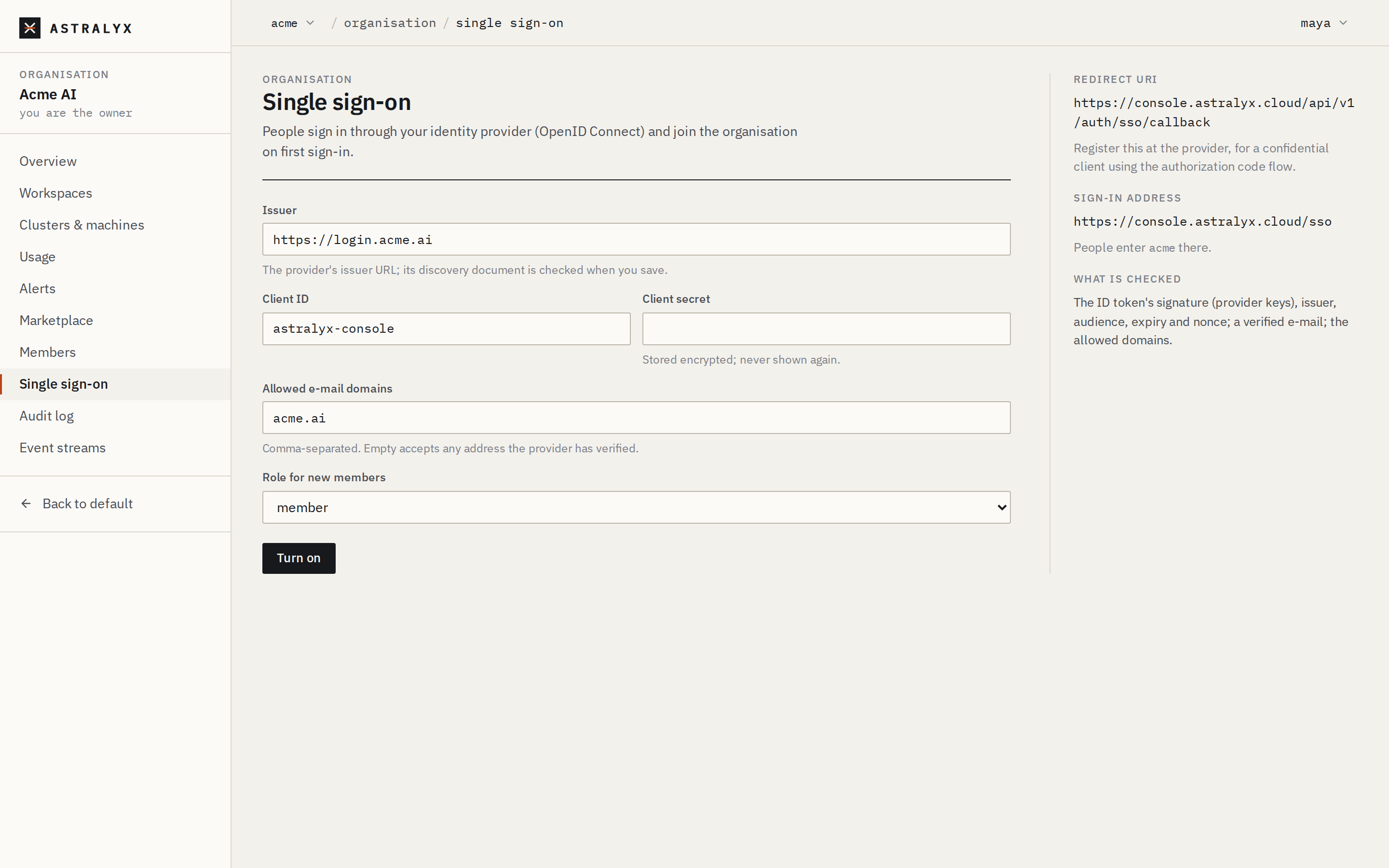
- In the console, open Organisation → Single sign-on. Copy the
Redirect URI shown at the side. On Astralyx it is
https://console.astralyx.cloud/api/v1/auth/sso/callback. - At your identity provider, create a confidential client (a "web application") for the authorization code flow, and register that redirect URI. Note its issuer URL, client ID and client secret.
-
Back in the console, fill in the form:
Field Description Issuer The provider's issuer URL ( https://…). Its discovery document is fetched when you save; if that fails, saving fails with400 DISCOVERY_FAILED.Client ID The client ID at the provider. Client secret Stored encrypted, never shown again. Required the first time; later, leave it empty to keep the stored one. Allowed e-mail domains Comma-separated, for example acme.ai, lab.acme.ai. A person whose e-mail is in none of them is refused (403 DOMAIN_NOT_ALLOWED). Empty accepts any address the provider has verified.Role for new members member(default) oradmin. Applies only to people who are not members yet. -
Select Turn on (Save when changing existing settings). The page says Saved.
- Test it: in a private browser window, open
https://console.astralyx.cloud/sso, enter the organisation's short name and sign in at the provider. You return to the console, signed in, with the organisation in the organisation menu. - Tell people the sign-in address and the short name to type, both shown at the side of the page under Sign-in address.
The same through the API:
$ curl -sS -X PUT "$ASTRA_URL/api/v1/orgs/acme/sso" \
    -H "Authorization: Bearer $ASTRA_TOKEN" -H "Content-Type: application/json" \
    -d '{"issuer": "https://login.acme.ai", "client_id": "astralyx",
         "client_secret": "…", "allowed_domains": ["acme.ai"], "default_role": "member"}'
{"issuer":"https://login.acme.ai","client_id":"astralyx","allowed_domains":["acme.ai"],"default_role":"member","redirect_uri":"https://console.astralyx.cloud/api/v1/auth/sso/callback"}
| Field | Type | Default | Description |
|---|---|---|---|
issuer |
string | — | http(s)://…; 400 INVALID_ISSUER otherwise. |
client_id |
string | — | The client ID. |
client_secret |
string | the stored one | Required the first time. |
allowed_domains |
list of strings | [] (any verified address) |
E-mail domains allowed to sign in. |
default_role |
string | member |
member or admin (400 INVALID_ROLE otherwise). |
GET /orgs/{org}/sso returns the settings without the secret
(404 SSO_NOT_CONFIGURED when there are none). A browser can start a sign-in
directly at GET /api/v1/auth/sso/{org}/start?redirect_to=/<path>, for
example from a link on your intranet.
Where to find the issuer#
The issuer is the URL your provider's discovery document names. Common forms:
| Provider | Issuer |
|---|---|
| Okta | https://<your-okta-domain> or https://<your-okta-domain>/oauth2/<authorization server> |
| Keycloak | https://<host>/realms/<realm> |
https://accounts.google.com |
|
| Microsoft Entra ID | https://login.microsoftonline.com/<tenant ID>/v2.0 |
Open <issuer>/.well-known/openid-configuration in a browser: if it loads
and its issuer is the same string, the issuer is right. Whatever the
provider, the ID token must carry email_verified: true; if sign-in fails
with the provider has not verified this e-mail, configure the provider to
release that claim to the client.
What happens at each sign-in#
- Astralyx sends the browser to the provider with a new
state,nonceand PKCE challenge (S256). The sign-in must finish within 10 minutes, and eachstateis used once. - On return, Astralyx exchanges the code and verifies the ID token: its
signature against the provider's published keys, the issuer, the
audience (your client ID; with several audiences,
azpmust be your client ID), expiry and issue time with 60 s of clock skew, the nonce, a verified e-mail, and the allowed domains. - It uses the Astralyx account with that e-mail, or creates one. If an existing account with that e-mail was never verified, the provider's assertion takes it over: its password, sessions and API tokens are removed, so whoever registered the address without proving it keeps no way in. A disabled account is refused.
- It adds the person to the organisation with the Role for new members, unless they are a member already (their role is left as it is).
- It starts a browser session and records
user.sso_loginin the audit log.
People who first sign in through SSO get no personal organisation: they start in yours.
People who leave#
SSO adds members; it never removes them.
Warning
Disabling someone at your identity provider stops their new SSO sign-ins. A browser session already open lasts until it expires (12 hours), a CLI session up to 30 days, and their personal API tokens keep working. Also remove them from the organisation (Members and invitations): that ends their access to it at their next request.
The order matters: disable them at the provider first, then remove them. Removed but still enabled at the provider, their next SSO sign-in makes them a member again, with the role for new members.
Turn SSO off#
In Organisation → Single sign-on, select Turn off single sign-on and
confirm (or DELETE /orgs/{org}/sso). People who joined through SSO keep
their accounts and memberships. Accounts created by SSO have no password:
they set one with Forgot the password? on the sign-in page before they
can sign in again. The change is recorded as sso.remove.
Other ways to sign in#
Besides your SSO, people can sign in with a password, or with Google or
GitHub when Astralyx offers them on the sign-in page (GET
/api/v1/auth/providers lists the providers offered). Google and GitHub are
Astralyx's sign-in options, not your organisation's:
- Google is verified like SSO: an OpenID Connect ID token with a verified e-mail.
- GitHub uses the account's primary, verified e-mail; an unverified one is never trusted.
A Google or GitHub sign-in uses the account linked to that provider before, else the account with the same e-mail (taking over an unverified one, as SSO does), else a new account when sign-up is open. It never makes anyone a member of an organisation: they still need an invitation, or your SSO.
Note
Turning on SSO does not stop your members from signing in with a password, Google or GitHub: their account is the same whichever way they sign in. What SSO controls is who joins. To cut someone off, remove them from the organisation.
Accounts and sessions#
| Item | Value |
|---|---|
| Password | At least 12 characters, at most 1024 bytes |
| E-mail verification link | Valid 24 hours, single use |
| Password reset link | Valid 1 hour, single use; using it ends every session of the account |
| Browser session | 12 hours: an HttpOnly, SameSite=Lax cookie |
CLI session (astra login) |
30 days |
| Changing your password (Account & tokens → Password) | Ends every other session of the account |
| Signing out | Ends the current session |
There is no list of a person's sessions to end them one by one. To end all of them, change or reset the password.
When sign-up is limited to invitations, signing up without one fails with
403 SIGNUP_CLOSED. Sign-in attempts are rate-limited; see
Limits.
Troubleshooting#
| Symptom | Cause | Fix |
|---|---|---|
400 DISCOVERY_FAILED when saving |
The discovery document is unreachable, or names another issuer. | Use the issuer exactly as <issuer>/.well-known/openid-configuration names it; it must be on a public address. |
403 DOMAIN_NOT_ALLOWED at sign-in |
The e-mail's domain is not in Allowed e-mail domains. | Add the domain, or empty the list. |
401 SSO_FAILED: the provider has not verified this e-mail |
The ID token lacks email_verified: true. |
Configure the provider to release a verified email claim to this client. |
401 SSO_FAILED: the sign-in took too long |
More than 10 minutes passed at the provider. | Start again from /sso. |
404 SSO_NOT_CONFIGURED at /sso |
The short name is wrong, or SSO is off. | Check the short name in the organisation's addresses (/o/<short name>). |
| The provider says the redirect URI is not allowed | It was not registered, or differs by a character. | Register https://console.astralyx.cloud/api/v1/auth/sso/callback exactly. |
403 WRONG_ACCOUNT accepting an invitation |
Signed in with another e-mail. | Sign in, or sign up, with the invited address. |
429 TOO_MANY_ATTEMPTS |
Too many sign-in attempts. | Wait for the window to pass (15 minutes for sign-in). |